Docs / MIDI
MIDI Remote
A remote turns your screen into a control surface for your rig. You lay out pages of buttons, toggles and faders yourself, and each one sends the MIDI commands you choose.
MIDI needs Backstage.
Requires Backstage
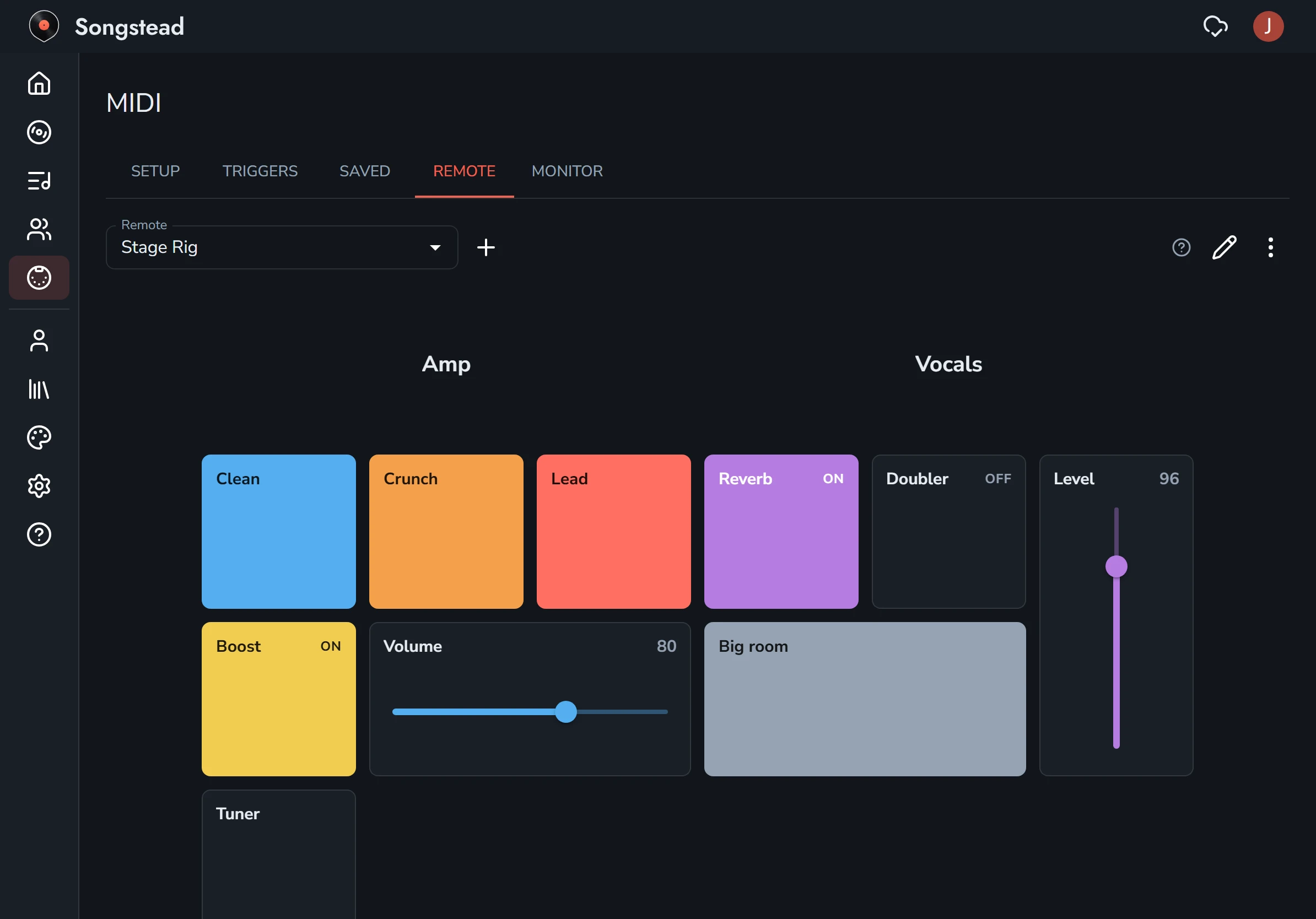
Make a remote
- On the MIDI page, open the Remote tab.
- Select New Remote.
- Type a Name, like Keyboard.
- Choose how many Columns its pages have, or pick Phone, Tablet or Desktop.
- Select Create. The new remote opens ready to edit.
You can have as many remotes as you like, such as one for your phone and one for your tablet. The Remote list at the top of the tab switches between them.
Add a control
- Select Edit, the pencil button at the top right.
- Select the plus on any empty square of the page.
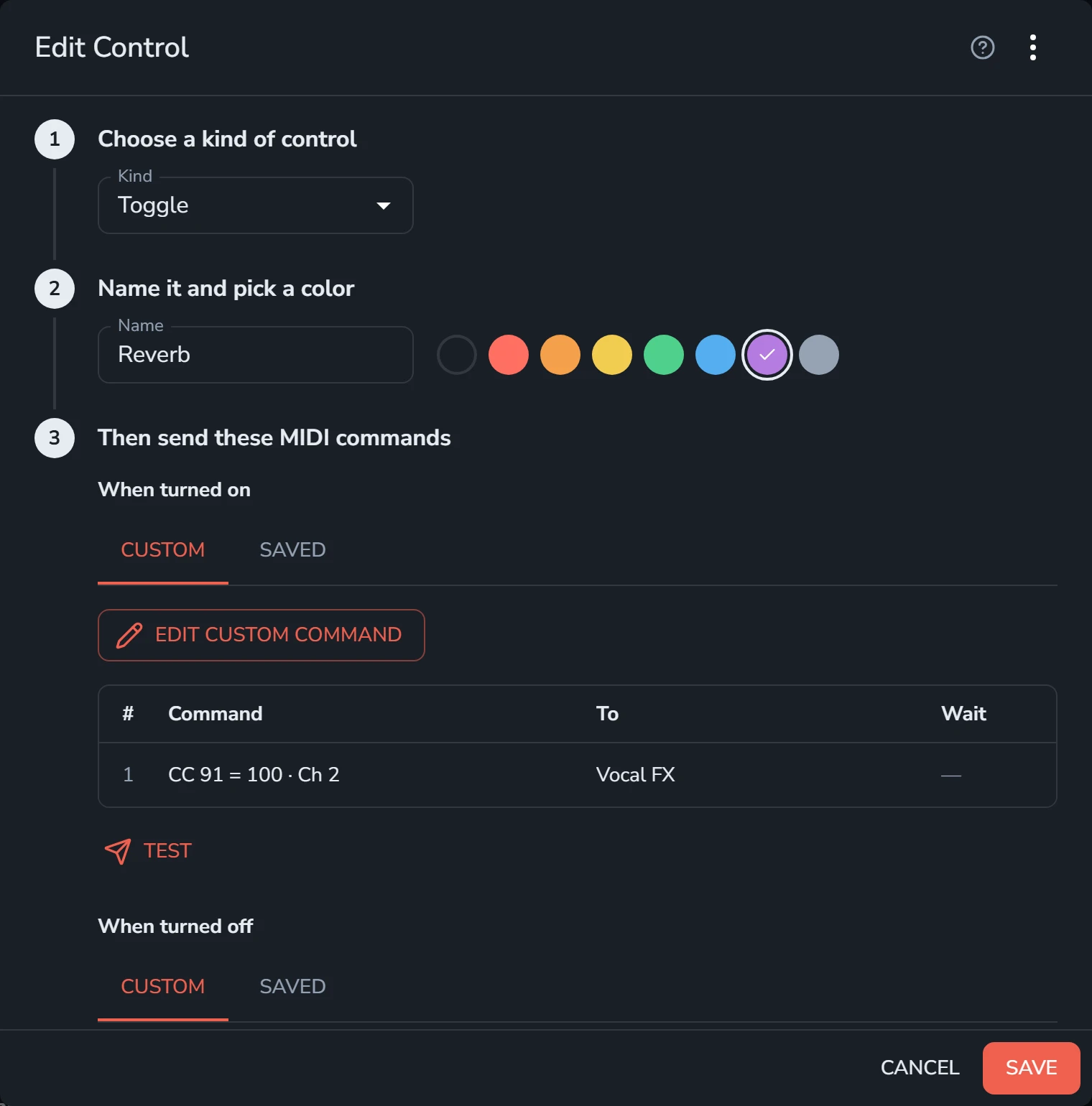
- Under Choose a kind of control, choose the Kind.
- Under Name it and pick a color, type a Name and pick a color. The sun button after the colors switches them to a lighter shade.
- Under the third step, choose what it sends. See MIDI commands.
- Select Add.
- When you're finished editing, select Save, the disk button at the top right.
Kinds of control
| Kind | What it does |
|---|---|
| Button | Sends its commands when you select it. |
| Toggle | Sends one set of commands when it's turned on and another when it's turned off. When your device sends one of those commands back, the toggle follows it. |
| Fader | Sends a Control Change from 0 to 127 as it moves. Choose the controller under Then drive this controller. When your device sends that controller back, the fader follows it. |
| Text | A heading for the controls around it. It sends nothing. |
Arrange a page
While you're editing:
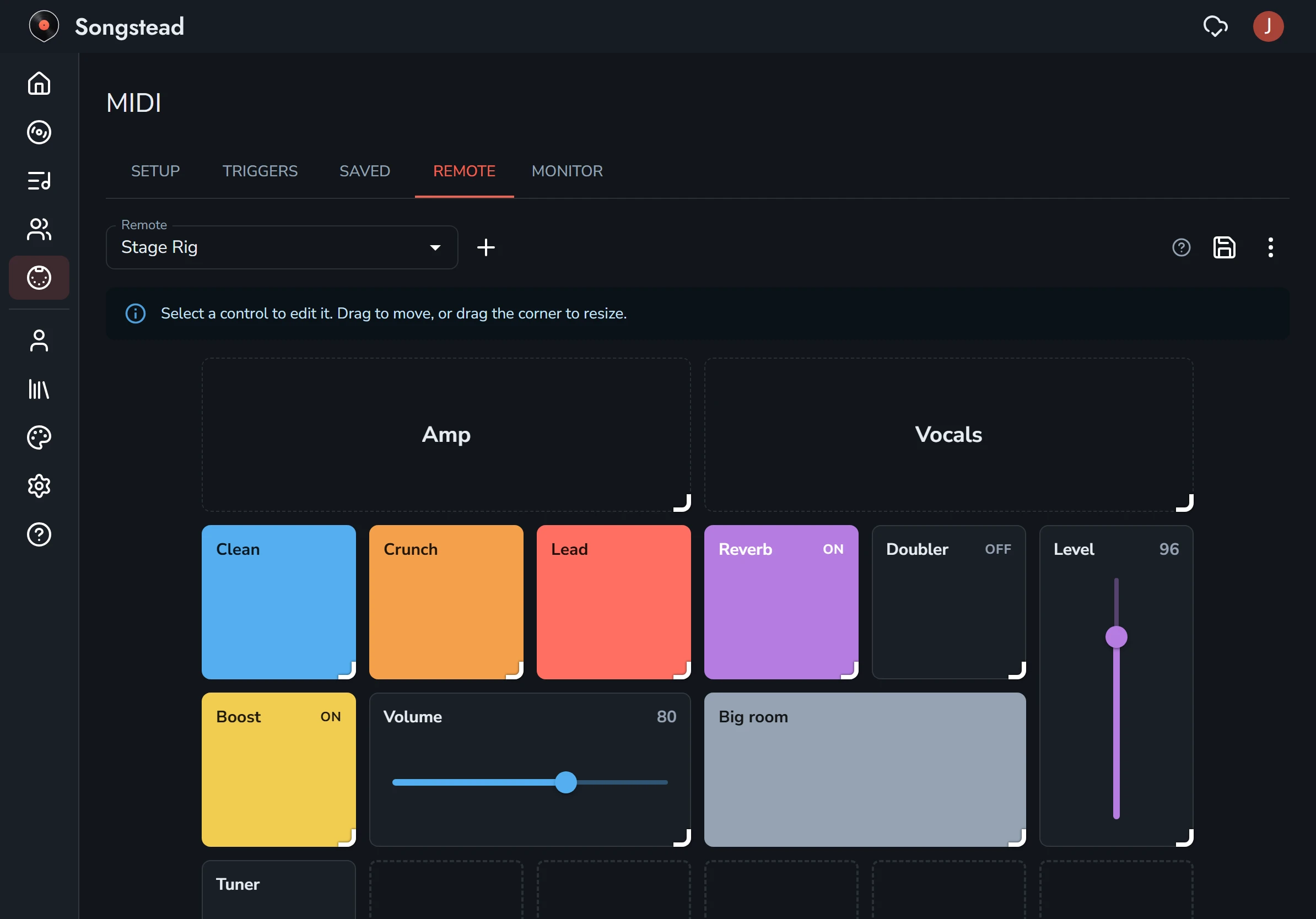
- Move a control by dragging it. With a finger, hold it for a moment first.
- Resize a control by dragging its bottom-right corner.
- Change a control by selecting it. Delete is in its dialog's menu (the three dots).
Pages
A remote can have several pages. Swipe between them, or select a dot under the remote to go to that page.
- Add a page with Add Page beside the dots while editing.
- Delete a page with Delete Page in the menu (the three dots) while editing. This deletes every control on it.
Remote settings
While editing, the menu (the three dots) at the top right has:
| Menu item | What it does |
|---|---|
| Full Screen | Shows the remote alone over the whole screen. |
| Remote Settings | Changes the remote's name and columns. |
| Delete Page | Deletes the page you're on and every control on it. |
| Delete Remote | Deletes the remote and every control on it. |
Full screen
Full Screen in the remote's menu shows the remote over the whole screen, with the Remote list and Exit Full Screen at the top.