
Docs / Songs
Tags
Tags are labels you put on songs so you can find them again, like "acoustic", "Christmas", "opener" or "learning". A song can have as many tags as you like, and you can filter Songs to show only the songs with a tag.
Add tags to a song
Select the pencil on the song page, then use the Tags card. On a tablet or phone, it's in the panel that opens from the button at the bottom right of the editor.
Start typing a tag's name and Songstead offers the tags you already have. If you type a name you haven't used before, it becomes a new tag when you save the song.
Group tags and personal tags
A tag belongs to a group, the same way a song does.
| Kind | Who sees it | Which songs it can go on |
|---|---|---|
| Group tag | Everyone in the group. | Songs in that group. |
| Personal tag | Only you. | Any song you can see, including songs in other people's groups. |
On a song in a shared group, the Tags card has two boxes: Group Tags and Personal Tags. On a song in your Personal group, every tag is personal, so there's only one box.
Personal tags are handy in a band's library. You can tag the songs you sing lead on, for example, without changing anything anyone else sees.
A viewer in a group can't change the group's tags, but can still add personal tags to the group's songs. See Groups and roles.
When a song moves to another group, its group tags move with it. If the new group doesn't have a tag by that name yet, Songstead creates it.
Manage your tags
Open Library from the menu, then the Tags tab. It lists every tag and how many songs have it. If you're in more than one group, choose which group's tags to see with Group at the top.
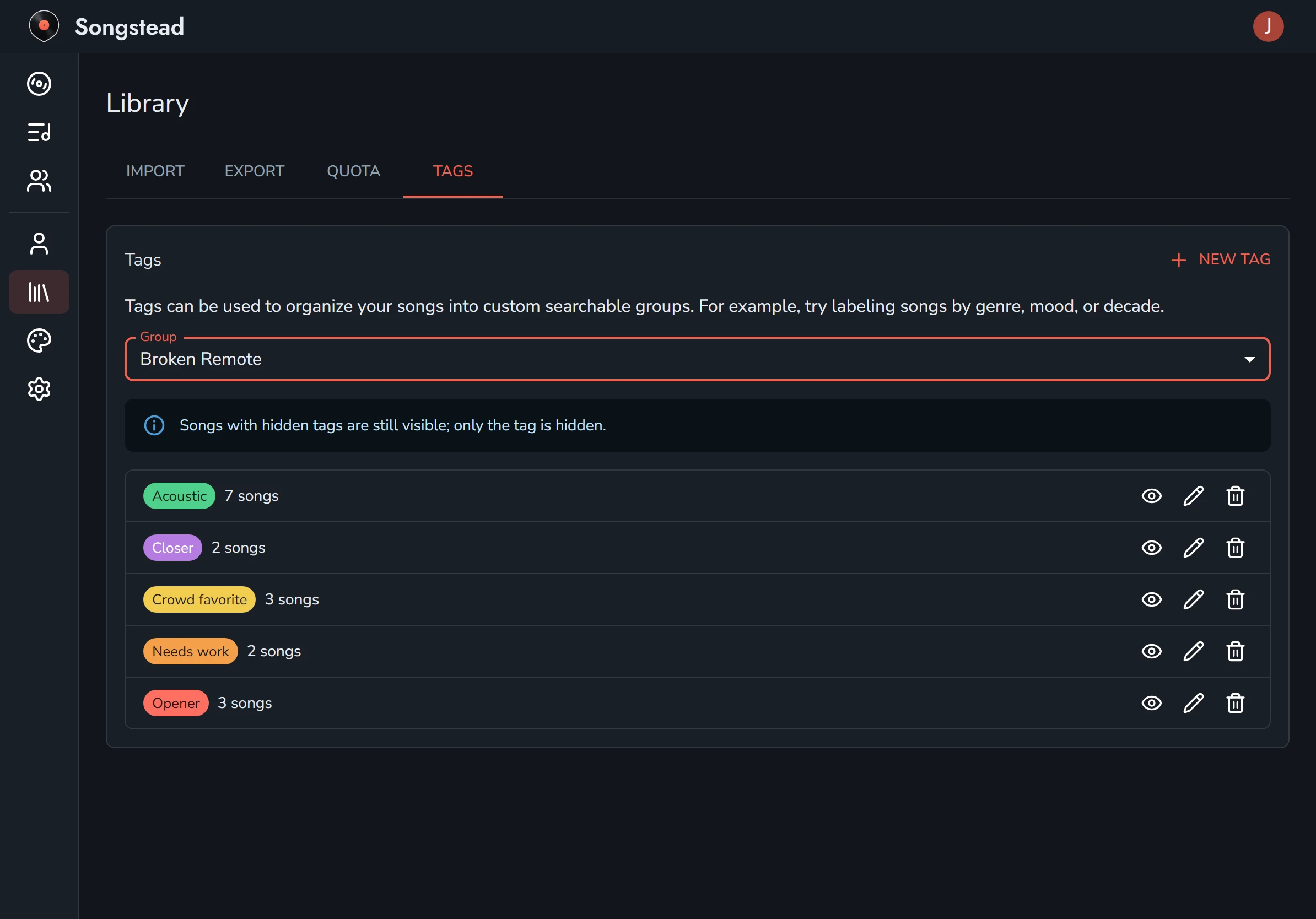
Each tag has three buttons:
| Button | What it does |
|---|---|
| Eye | Hides the tag, or shows it again. |
| Pencil | Opens Edit Tag, where you can rename the tag or change its color. |
| Trash can | Opens Delete Tag, which takes the tag off every song that has it. |
When you delete a tag, you can pick another tag to put on those songs instead. That's how you merge two tags into one, like "Xmas" into "Christmas".
New Tag at the top makes a tag before you've used it on any song.
Only a group's owners and editors can rename or delete its tags.
Hide a tag
Hiding a tag stops it showing on your songs. The songs themselves still show. Only you are affected, so hiding a group tag doesn't change anything for anyone else.
This is useful in a large group where other people use tags you don't need, like another team's labels.
Filter by tag
On Songs, the Tags filter shows only the songs with the tags you pick. See Search, filter and sort.