Docs / Performing
Live Mode
Live Mode shows a song, or a whole set, full screen for performing. The menus and editing controls get out of the way, the text is bigger, and moving through the chart takes one tap or one press of a foot pedal.
Live Mode and foot pedal support need Backstage.
Requires Backstage
Open Live Mode
Select Live Mode, the spotlight button at the top right of a song or a set. From a song, you play that one song. From a set, you play the whole set: the songs run one after another in order, as if they were one long chart.
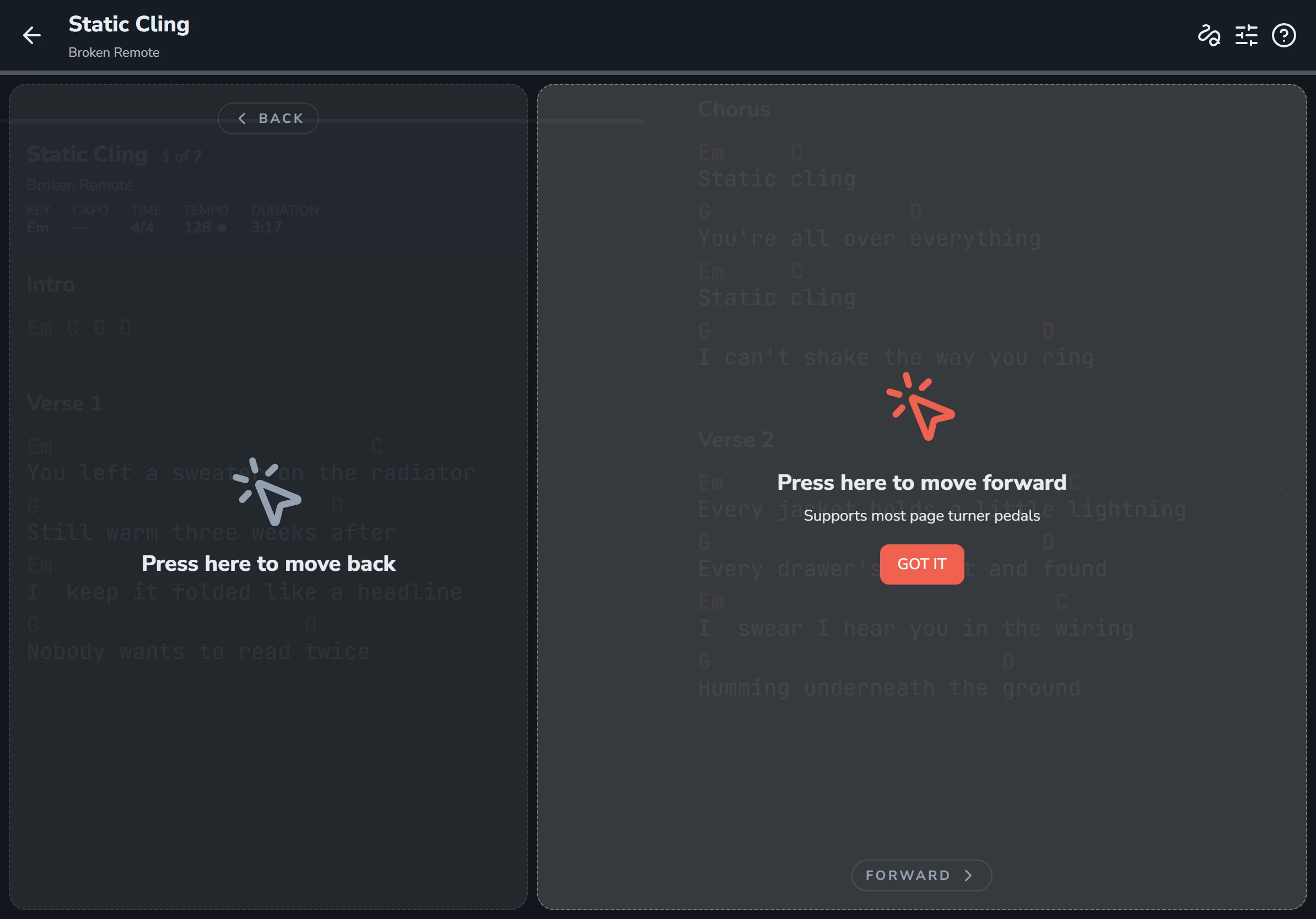
The first time you open Live Mode, a guide shows where to tap. Select Got it to close it. You can bring it back with the question mark button at the top right.
What's on screen
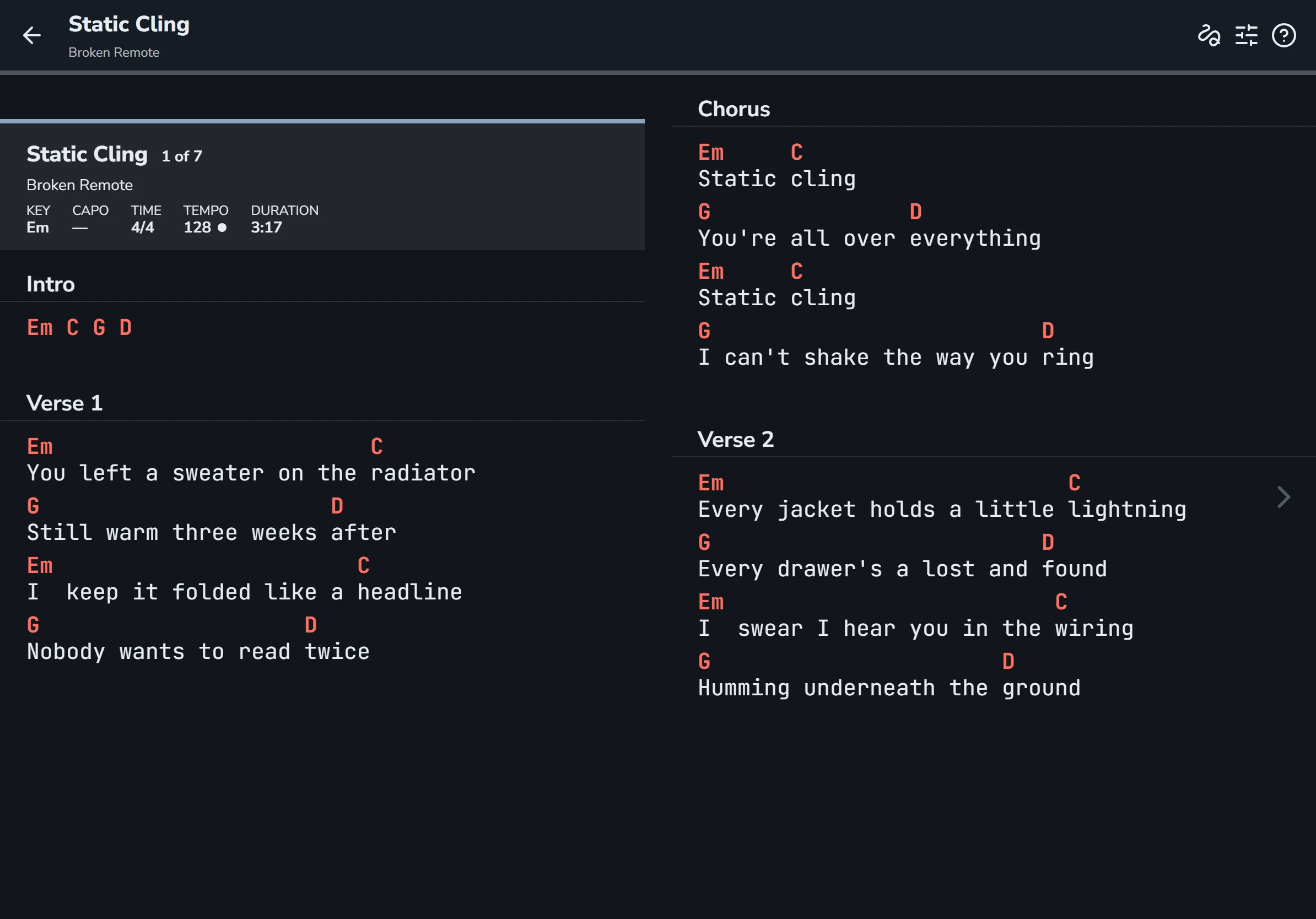

- The top bar shows the song you're on. The back arrow on the left leaves Live Mode.
- The thin line under the top bar fills in as you move through the song or set.
- Each song opens with a banner showing its title, where it falls in the set (like "1 of 7"), and its key, capo or transpose, time signature, tempo and length. The dot beside the tempo pulses on the beat.
- The buttons on the right of the top bar are annotations, the tools panel, and the help guide. In the vertical layout there's also a play button for autoscroll.
Turn the page

Tap the right side of the screen to move forward, and the left side to move back. The forward side is the bigger one, because that's the tap you make all night without looking.
A Bluetooth page-turner pedal does the same thing. See Foot pedals and shortcuts.
Two ways to lay out the chart
Scroll Direction in Settings, on the Live tab, chooses how Live Mode lays out the chart.
| Scroll Direction | How it reads |
|---|---|
| Horizontal | The chart is laid out in columns side by side, like the pages of a book, and each tap moves one column. A tablet held sideways usually shows two columns, a phone one. This is the default. |
| Vertical | The chart is one long column, and each tap moves down to the next part of the song. You tap the bottom of the screen to move forward and the top to move back. This is the layout that has autoscroll. |
A PDF or photo chart moves a page, or part of a page, at a time.
Change things while you play
The tools button in the top bar opens a panel with the Performance and Display cards for the song on screen. From there you can change the key, capo or transpose, chord names, simplified chords, text size, and which parts of the chart show. In the vertical layout, the panel also has autoscroll. See Keys, capo and transposing and Chord display.
Anything you change in Live Mode is saved the same way it would be on the song page, so it's still there next time.
Keep the screen on
Keep Screen Awake in Settings stops your device going to sleep while a song or Live Mode is open. It's on to start with.