
Docs / Sets
Sets
A set is a list of songs in the order you'll play them, for one occasion: a gig, a Sunday service, a rehearsal or a lesson. Your sets are under Sets in the menu.
The sets list
Sets sorts your sets by date into Upcoming and Past, with sets that have no date in their own section at the end. Each set shows its date, location, how many songs it has and which group it's in.
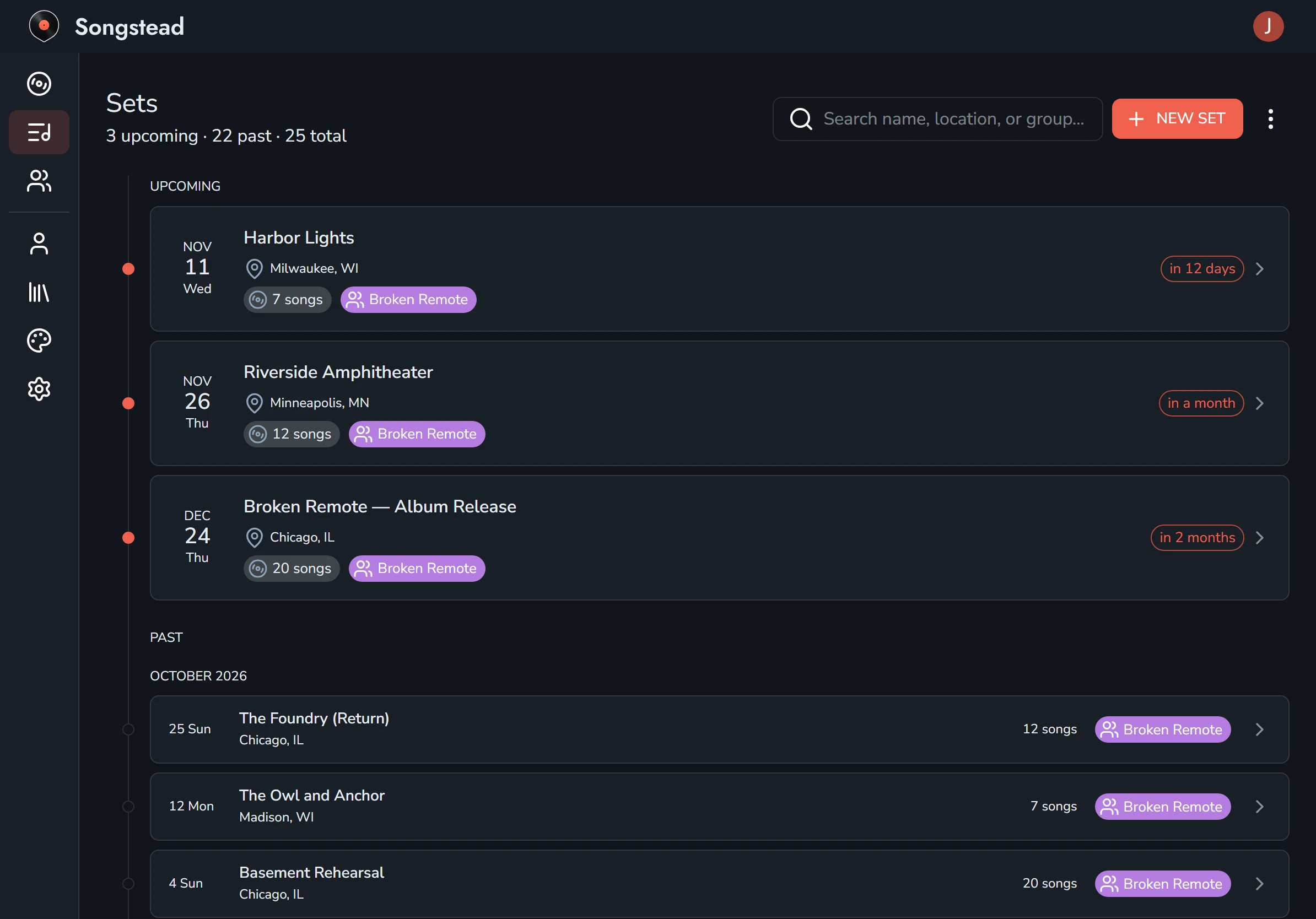
The search box at the top finds a set by its name, location or group. The menu beside New Set has Calendar Feeds, which puts your sets in a calendar app. See Calendar feeds.
Create a set
Select New Set on the Sets page. You can give the set these details:
| Detail | What it's for |
|---|---|
| Name | What the set is called, like "Harbor Lights" or "Sunday, 9am". |
| Date | When it's played. The date decides whether the set is upcoming or past. |
| Location | Where it's played. You can search by it. |
| Group | Who can see the set. See Groups and roles. |
| Note | Anything the set needs, like call times or who's playing. |
On a tablet or phone, the details are in the panel that opens from the button at the bottom right of the screen. On a computer they're beside the song list.
Select the save button, the disk at the top right, when you're done.
Add and arrange songs
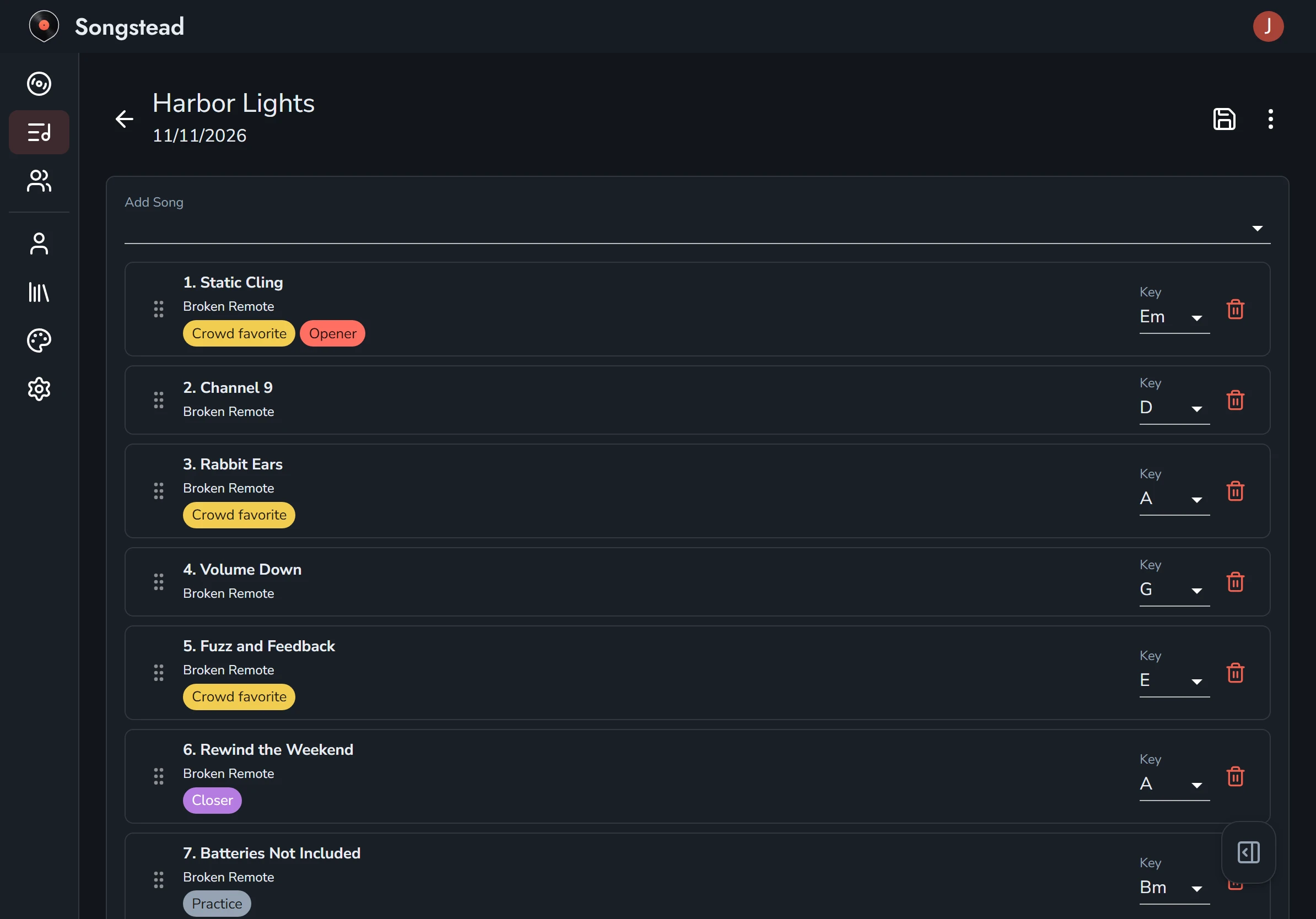
Type into Add Song to search your library, and pick a song to add it to the end of the set. Each song has a handle on its left; drag it to move the song up or down. The trash can on the right takes a song out of the set. It doesn't delete the song from your library.
A set can only hold songs from its own group. If you move a set to a different group, Songstead asks you to take out any songs from the old group first.
Each song's key and chart
Every song in a set has its own Key for that set. A song with more than one chart also has a Chart menu, to choose which chart opens in this set.
Both are shared: everyone who can see the set sees the same key and chart. Changing them only changes this set. The song itself, and every other set it's in, stay as they are.
When you add a song, its key starts as the key you play the song in, or the chart's written key if you've never changed it.
Your capo or transpose stays personal inside a set, the same as everywhere else. See Keys, capo and transposing.
The set page
Select a set to open it. You see the songs in order, each with its key, tempo, time signature and length. Select a song to open it in the key and chart chosen for this set.
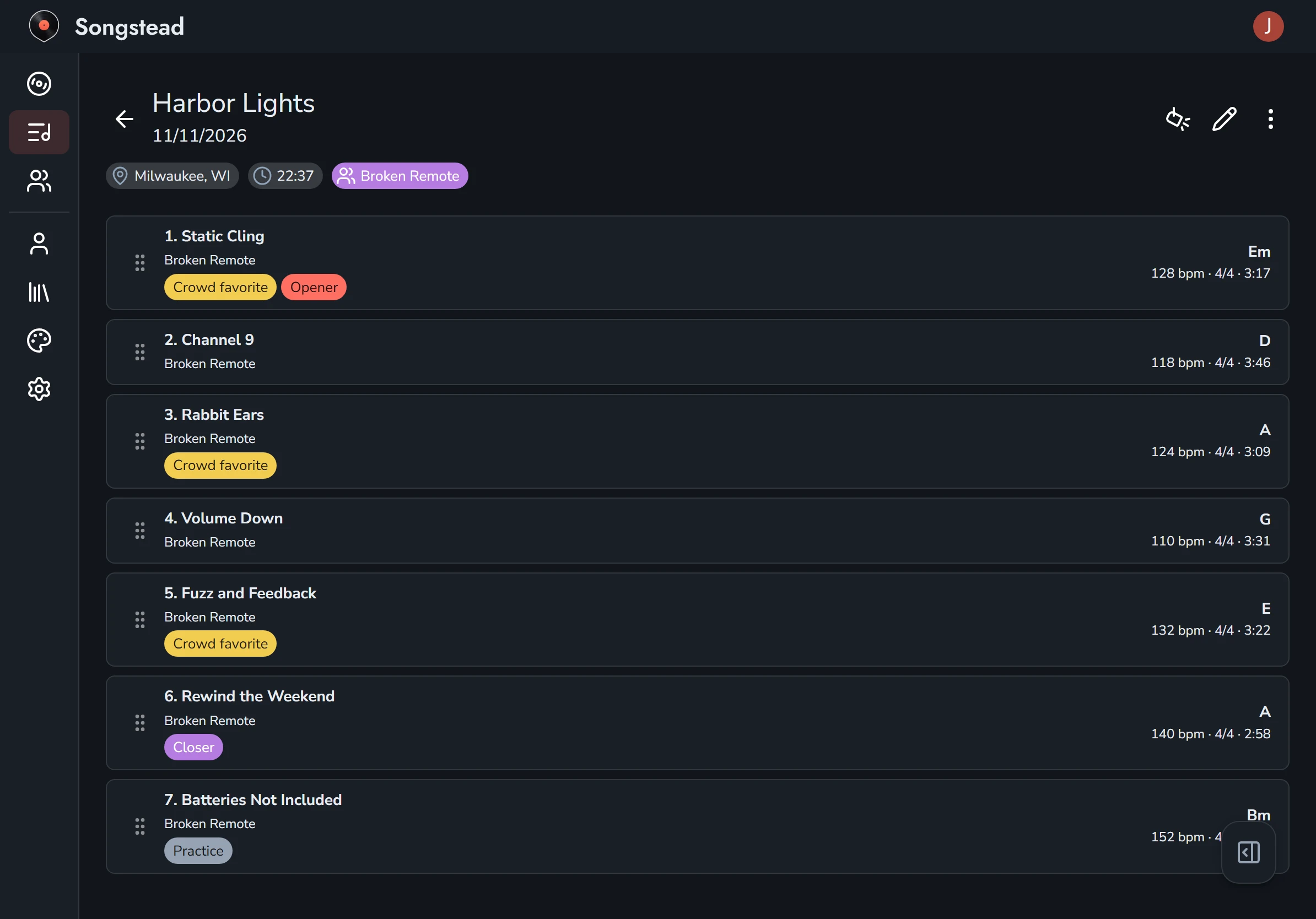
You can drag songs into a new order right on the set page, without opening the editor.
The clock under the set's name is its total length, added up from each song's Duration. If some songs don't have a duration, they're left out, and the total starts with a ~ to show it's an estimate.
The set's note is in the panel that opens from the button at the bottom right on a tablet or phone, and beside the songs on a computer.
The buttons at the top right are Live Mode (the spotlight), which plays the whole set one song after another, the pencil, which opens the editor, and a menu. See Live Mode.
Duplicate, download or delete a set
The set's menu has three choices:
- Duplicate copies the set with the same songs, keys and charts, ready to change for next week.
- Download saves the whole set as one PDF, with each song starting on a new page, in order, in the key and chart chosen for the set. It's the easiest way to print a set for someone who doesn't use Songstead. See Exporting and printing.
- Delete removes the set once you confirm. The songs stay in your library.