
Docs / Performing
Metronome
The metronome plays a click so you can practice a song at the right speed. Every song page has one, and it starts at the song's own tempo and time signature.
Start and stop
The quickest way is the metronome button in the toolbar at the bottom of the chart. Select it to start the click, and again to stop.
The Metronome card has the full controls. It's beside the chart on a computer, and in the Settings & Tools panel on a tablet or phone, which opens from the button at the bottom right of the chart.
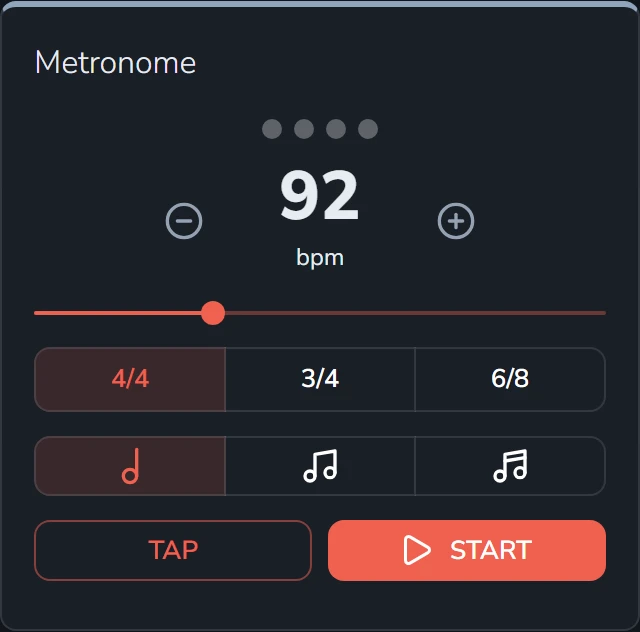
Select Start to begin and Stop to end. The dots at the top light up on each beat, and the first beat of each bar is accented so you can hear where the bar starts.
Controls
| Control | What it does |
|---|---|
| Tempo | The number in the middle, in beats per minute. The − and + buttons change it one at a time, and the slider moves it quickly. It goes from 20 to 250. |
| Tap | Tap it along with the music, and the tempo follows your taps. Handy when you know how a song feels but not its number. |
| Time signature | 4/4, 3/4 or 6/8. In 6/8 the fourth beat gets a lighter accent too. |
| Note length | Clicks once per beat, twice per beat, or four times per beat. More clicks help with tricky rhythms and slow practice. |
Saving a tempo
Changing the metronome doesn't change the song. To keep a tempo for next time, edit the song and set its Tempo and Time Signature. See Songs.