
Docs / Songs
Files and storage
You can attach files to a song: a PDF of a lead sheet, a photo of a handwritten chart, a Word document from your music director, or a practice recording. A PDF or a photo can also be the chart you play from.
Attaching files needs a plan that includes file storage. Backstage and Harmony each include 5GB.
Requires Backstage
Attach a file
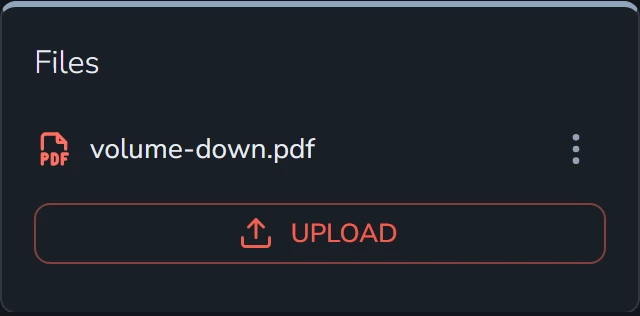
Every song page has a Files card. Select Upload and choose a file from your device. On a tablet or phone, the card is in the Settings & Tools panel, which opens from the button at the bottom right of the chart.
| Kind of file | What you can do with it |
|---|---|
| Play from it as a chart, search the words in it, and download it. | |
| Photo or image | Play from it as a chart, and download it. |
| Word document | Play from it as a chart once Songstead has turned it into a PDF, search the words in it, and download either the original or the PDF. |
| Audio | Play it from the Files card, and download it. |
The menu beside a file has Download, Rename and Delete. A Word document's menu has Download Original and Download PDF instead of Download.
Play from a PDF or photo
To play from a PDF or a photo, add it as a chart. Select the pencil on the song page, select the + beside the chart tabs, choose File, pick the file, and select Create. Then select the save button. See Charts for the details.
The file becomes a tab beside the song's other charts, and Songstead shows its pages as they are.
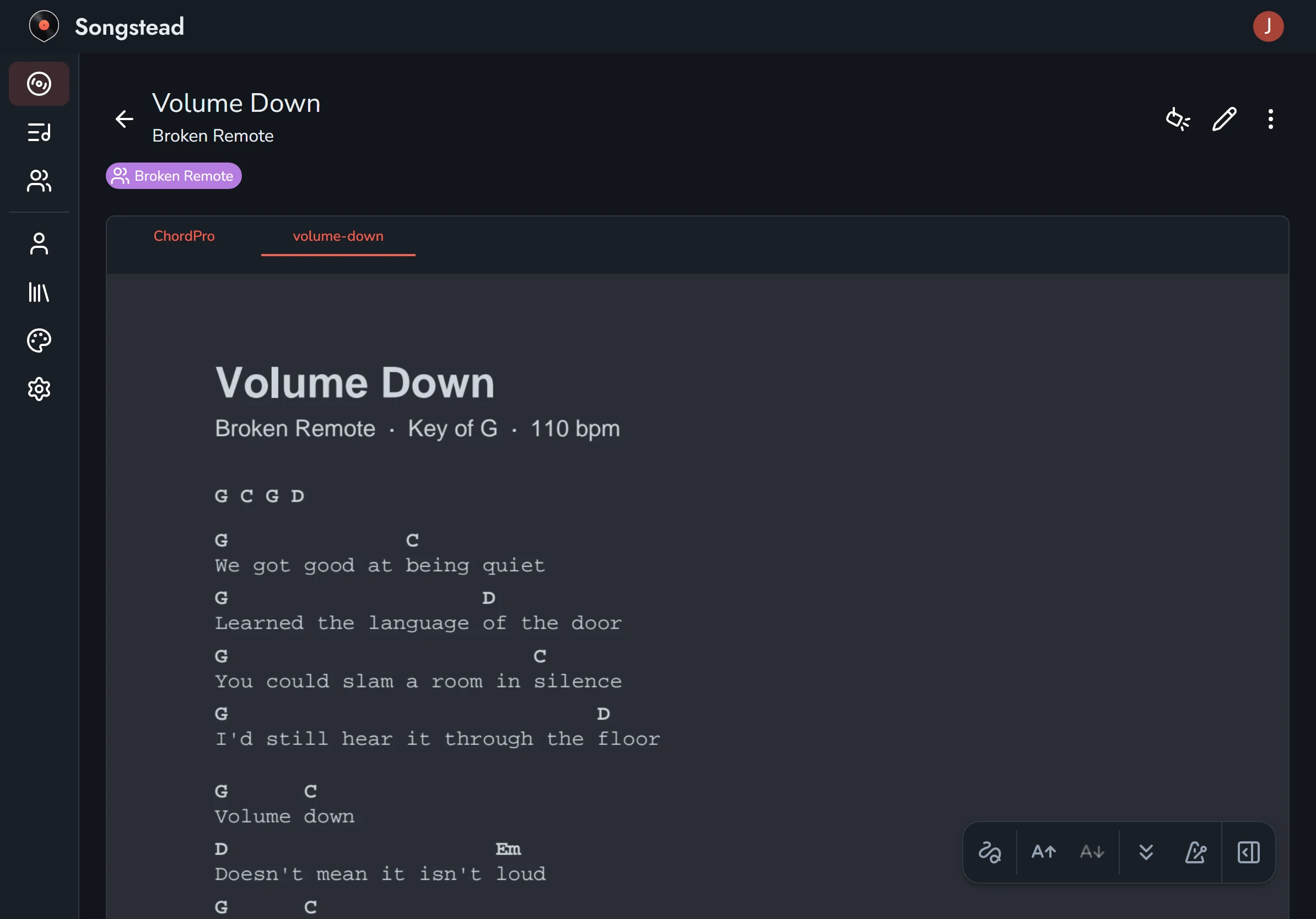
You can annotate a PDF or photo chart the same way as a text chart, and play it in Live Mode. Songstead can't transpose it or change its text, because it doesn't read the chords in a file.
Colors for dark screens
A white page is glaring on a dark screen, so Songstead recolors file charts to match your theme. You can choose how under Files in Appearance:
| Style | What it does |
|---|---|
| Original | Shows the pages exactly as they are. |
| Match Theme | Recolors the pages to the theme's own colors. This is the default, and it's what the picture above shows. |
| Invert | Swaps light and dark, so white paper turns black. |
| Invert, Keep Hue | Swaps light and dark, but keeps colors the same, so red ink stays red. |
Search inside files
Songstead reads the words in every PDF and Word document you attach, including scanned pages. To search them, turn on Files in the search options on Songs. See Search, filter and sort.
A Word document waiting to be turned into a PDF shows Queued for Conversion in the Files card. If it can't be converted, it shows Couldn't Convert.
How much storage you've used
The Quota tab in Library shows how much of your storage you've used. These count against it:
- Files on songs in your Personal group.
- Files on songs in groups you own.
- Audio notes on your own annotations, and on the annotation layers of groups you own.
Files on songs in someone else's group count against that group owner's storage, not yours.
Delete a file
Delete in a file's menu removes it from the song. A chart made from that file goes with it.