
Docs / Account
Appearance and themes
Appearance in the menu controls how Songstead looks: the theme, how chords are written, how charts are laid out on screen and in PDFs, and how PDF and photo charts are colored. Every change follows you to your other devices.
Themes
Select a theme to switch to it. Each one shows a small preview of its colors.

| Theme | What it looks like |
|---|---|
| Auto | Light or Dark, following your device's own light or dark setting. This is the default. |
| Light | Dark text on a light background. |
| Dark | Light text on a dark background. |
| True Black | A pure black background, which suits OLED screens. |
| Clay | A warm light theme with a cream page and earthy colors. |
| Stage | A dim, warm dark theme lit in amber, for a music stand in a room with the lights down. It keeps the screen from being the brightest thing on stage. |
Chart settings
The Chart card has four tabs: Notation, App Style, PDF Style and Files. A Preview shows your changes on a sample chart as you make them.
Notation
How chords are spelled, in the app and in PDFs. See Chord display.
| Setting | What it does |
|---|---|
| Chord Names | Standard letter names or Nashville numbers. |
| Quality | Letters like Cmaj7 and Cm, or Symbols like CΔ7 and C−. |
| Superscript | Shows extensions and alterations as smaller raised text. |
| Simplify | Shows only each chord's root and quality. |
App Style and PDF Style
App Style is how charts look on screen, and PDF Style is how they look when downloaded as a PDF. The two tabs have the same settings, so a chart can be large and colorful on screen and plain black on paper.
| Setting | What it does |
|---|---|
| Font Size | How large the text is. |
| Display | Which parts of a chart are drawn: chords, lyrics and comments. |
| Spacing | How far apart lines are: Compact, Normal or Relaxed. |
| Collapse Whitespace | Turns runs of blank lines into one. |
| Chord Position | Chords Above the lyrics or Inline with them. |
| Wrap Chords | Puts square brackets around chords, which reads best inline. |
| Chord, Lyric, Comment, Header | The text color, and for some the background color, of each part of a chart. |
The menu button (the three dots) at the top right of the Chart card has more options. Copy from PDF Style and Copy from App Style copy every setting from the other tab, as a starting point. Revert Changes undoes what you've changed since opening the page, and Reset to Defaults puts the tab back the way it started.
Colors and spacing need Backstage. Font size, display, chord position and notation are on every plan.
Requires Backstage
Files
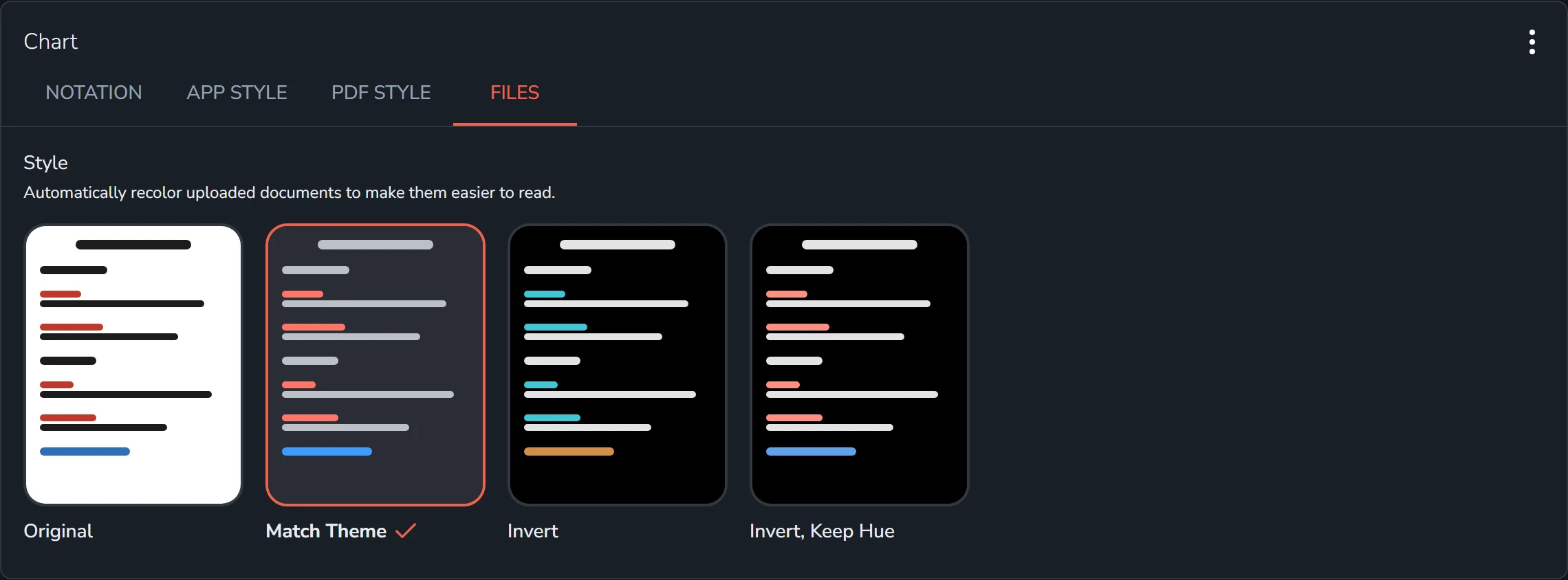
How PDF and photo charts are colored on screen. Match Theme is the default.
| Style | What it does |
|---|---|
| Original | Shows the pages as they are. |
| Match Theme | Recolors the pages to the theme's colors. |
| Invert | Inverts the pages, turning white paper black. |
| Invert, Keep Hue | Inverts the pages but keeps colors like red ink red. |