
Docs / Songs
Chord display
Songstead can show the same chart in different ways: with letter names or Nashville numbers, with full chords or simpler ones, bigger or smaller, and with only the parts you want to see. None of this changes the chart you saved, so you can switch back at any time.
The Display card
The Display card on the song page holds the settings you're most likely to change while you play. It's beside the chart on a computer. On a tablet or phone, it's in the Settings & Tools panel, which opens from the button at the bottom right of the chart.
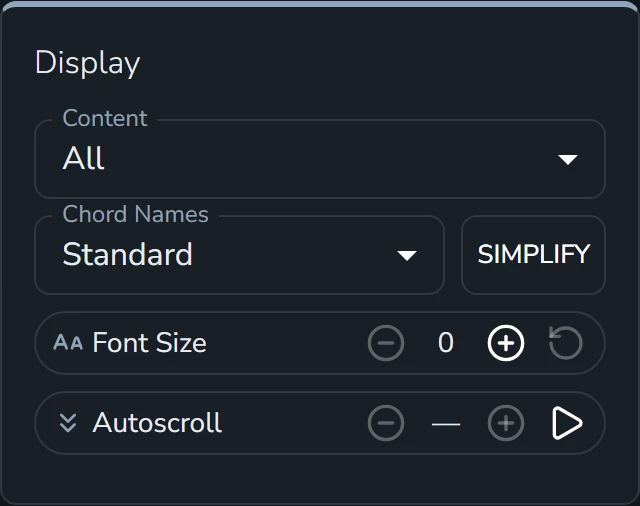
| Setting | What it does |
|---|---|
| Content | Chooses which parts of the chart are shown: Chords, Lyrics and, when the chart has any, Comments. A singer can turn chords off, and a player who knows the words can turn the lyrics off. All means everything is showing. |
| Chord Names | Standard shows letter names like G and Em. Nashville shows numbers that count from the key, like 1 and 6m, so they read the same in any key. |
| Simplify | Shows only the basic chord, leaving out sevenths and other added notes and the bass note after a slash. Gmaj7/B becomes G, and Am7 becomes Am. Major, minor, suspended and other chord types stay as they are, so Dsus4 is still Dsus4. Select it again to turn it off. |
| Font Size | Makes the chart's text bigger or smaller, in five steps. The reset button puts it back. |
| Autoscroll | Moves the chart down the screen as you play. See Autoscroll. |
Changing Chord Names to Nashville changes every chord in the chart at once:

These settings apply to every song, not only the one you're looking at, and they follow you to your other devices. The larger and smaller text buttons in the toolbar at the bottom of the chart change the same Font Size.
More settings in Appearance
Appearance in the menu has the full set of chord settings under Notation:
| Setting | Choices | What it does |
|---|---|---|
| Chord Names | Standard, Nashville | Letters or numbers, the same as in the Display card. |
| Quality | Letters, Symbols | Writes chord types as letters, like Cmaj7 and Cm, or as symbols, like CΔ7 and C−. |
| Superscript | On or off | Shows the extra parts of a chord, like the 7 in Am7, as smaller raised text. |
| Simplify | On or off | The same as Simplify in the Display card. |
Appearance also has settings for how the chart is laid out:
- Chord Position puts the chords above the lyrics or inline with them, whichever way the chart was written.
- Wrap Chords puts square brackets around each chord, which is easier to read when chords are inline.
- Spacing sets how far apart lines are: Compact, Normal or Relaxed.
- Collapse Whitespace turns several blank lines in a row into one.
The app and PDFs each have their own copy of these settings, so a chart can look one way on screen and another way on paper.
Choosing your own colors and spacing needs Backstage. Everything else on this page works on every plan.
Requires Backstage
PDF and image charts
None of these settings apply to a PDF or a photo of a chart, which is always shown the way it was uploaded. The Display card's controls are turned off while one is showing, except autoscroll.