Docs / Getting started
How Songstead works
Songstead keeps your songs and set lists in one library that you can play from on a phone, a tablet or a computer. A change you make on one device shows up on the others on its own, so you never copy anything between them.
If you don't have an account yet, see Create an account. You can also try the demo first, with a sample band's songs already in it.
Songs and charts
A song is one piece of music in your library. It has a title and the details you'd want while playing it: the artist, tempo, time signature, how long it lasts, and any notes. See Songs.
Each song holds one or more charts. A chart is the thing you actually read from while you play. Most songs have one chart, but you can keep several on the same song, like a full chart and a lyrics-only sheet. See Charts.
A chart is either text or a file:
- A text chart is chords and lyrics you typed or pasted in. Songstead understands it, so it can change the key, show the chords as Nashville numbers, make the text bigger, and reflow it to fit your screen. See ChordPro and chords over lyrics.
- A file chart is a PDF or a photo of a chart. Songstead shows it exactly as it is. See Files and storage.
Sets
A set is a list of songs in order, for a gig, a church service, a rehearsal or a lesson. Each song in a set can be in its own key and use its own chart, without changing the song anywhere else. You can play a whole set from start to finish in Live Mode. See Sets.
Groups
Every song and set belongs to exactly one group.
- Your Personal group is made for you when you sign up. Only you can see what's in it.
- A shared group is for a band, a worship team or a class. Everyone in it sees the same songs and sets, and a change one person makes shows up for everyone.
Even on a shared song, a few things stay yours alone: the key and capo you play it with, your personal tags, and your personal annotations. See Groups and roles.
Finding your way around
The menu down the left side of the screen takes you to each part of Songstead. On a phone, select the menu button in the top-left corner to open it.
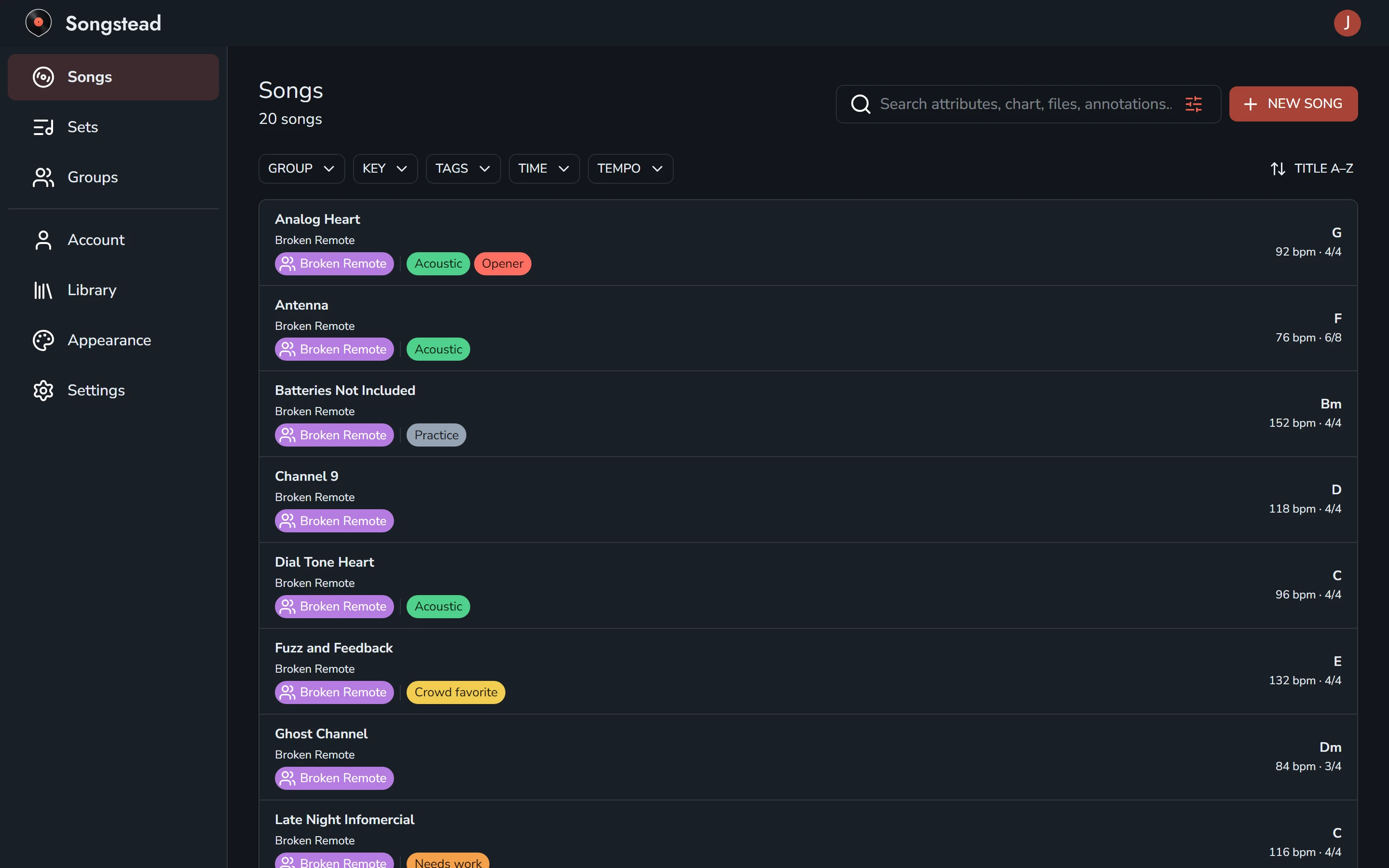
| Section | What's there |
|---|---|
| Songs | Every song you can see, with search, filters and sorting. |
| Sets | Your sets, split into upcoming, past and undated. |
| Groups | The groups you belong to, and any invites waiting for you. |
| Account | Your name, password and connected apps. |
| Library | Importing, exporting, tags and how much storage you've used. |
| Appearance | The theme, how chords are written, and how charts and PDFs look. |
| Settings | Transpose mode, keeping the screen awake, and how Live Mode scrolls. |
Your plan is listed at the bottom of the menu. See Plans and limits.
Devices
Songstead runs in a web browser at my.songstead.app, and as an app for iPhone, iPad and Android. You sign in with the same email address everywhere and see the same library. See iPhone, iPad and Android.
Songstead needs an internet connection to load and save your library.