Docs / Performing
Autoscroll
Autoscroll moves the chart down the screen while you play, so you can keep both hands on your instrument. Songstead can pace it to the length of the song, or you can set a speed yourself.
Start and stop
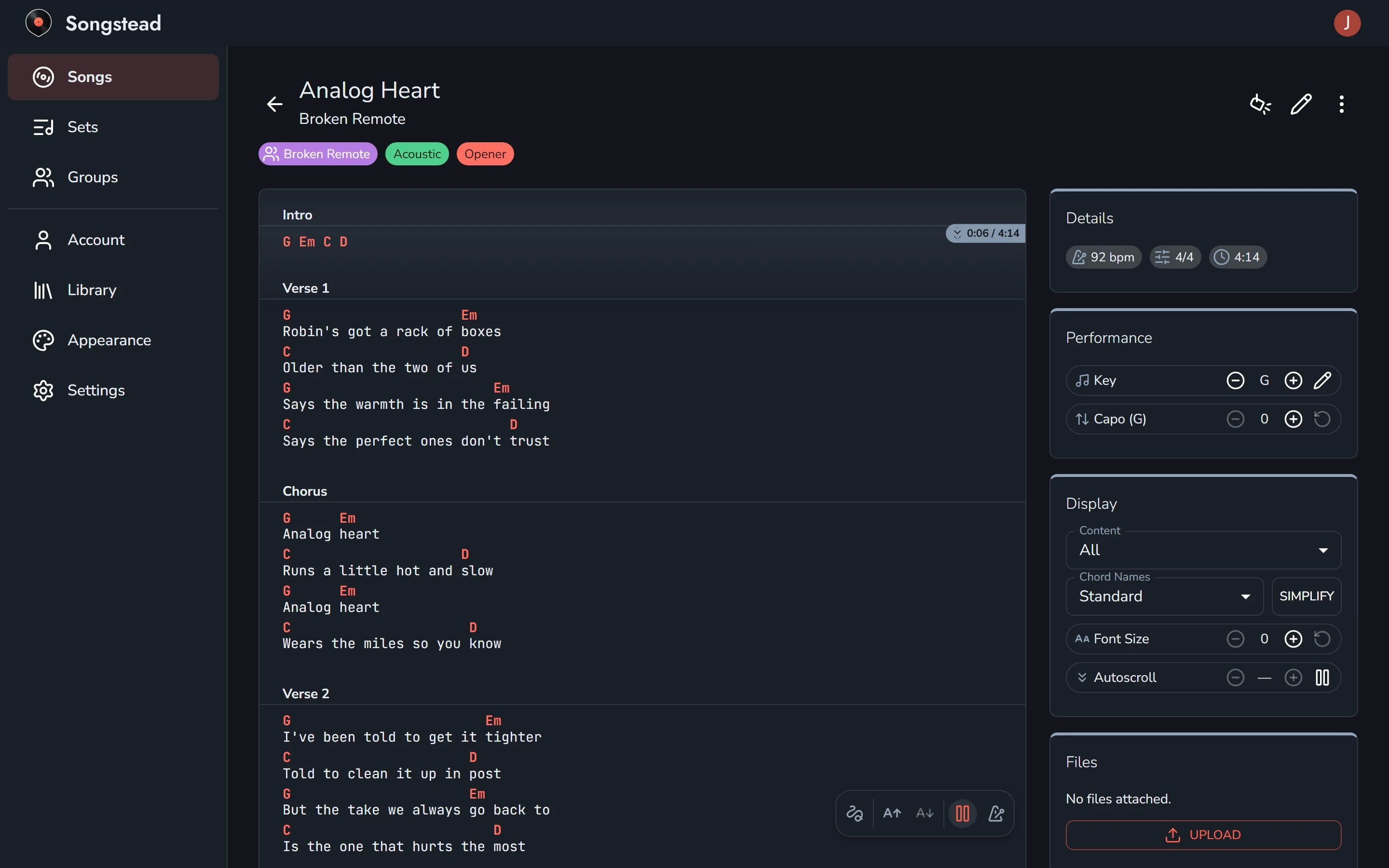

On a song page, select the autoscroll button, the double arrow in the toolbar at the bottom of the chart. Select it again to pause. The same control is in the Display card, with a play button and the speed.
While autoscroll runs, a shaded band shows the part of the chart you should be reading, and moves down the song.
If you fall behind or want to skip ahead, scroll the chart yourself. Autoscroll carries on from wherever you leave it.
In time with the song
If a song has a Duration, autoscroll paces itself so the chart ends when the song does. The label on the band shows how far through the song you are, like 0:06 / 4:14. There's no speed to choose, so the speed shows a dash.
You can set a song's duration when you edit it. See Songs.
At your own speed
If a song has no duration, autoscroll goes at the speed in the Display card. Use the − and + buttons beside Autoscroll to make it slower or faster. Your speed is used for every song without a duration, on all your devices.
Count-in
When a song has a tempo and a time signature, autoscroll counts you in for one bar before it starts to move.
In Live Mode
Live Mode has autoscroll when Scroll Direction is set to Vertical in Settings, on the Live tab. A play button appears in the top bar; select it to start and pause.
In a set, each song scrolls at its own pace, and the songs run on one after another.
A foot pedal's play button, the space bar, or Enter starts and pauses autoscroll in Live Mode. See Foot pedals and shortcuts.
Use autoscroll in the tutorials walks through it with a video.