Docs / Songs
Charts
A chart is what you read from while you play. A song can hold as many charts as you like, so a full chart, a lyrics-only sheet and a short version can all live under one title instead of being three separate songs.
Text charts and file charts
There are two kinds of chart.
| Kind | What it is | What Songstead can do with it |
|---|---|---|
| Text | Chords and lyrics you typed or pasted in, as ChordPro or chords over lyrics. | Change the key, show Nashville numbers or simpler chords, make the text bigger, fit it to your screen, change its colors, and search its words. |
| File | A PDF, a photo or a Word document you uploaded. | Show its pages exactly as they are, recolor them to suit a dark screen, and search the words in a PDF or Word document. |
Each chart has its own Written Key, the key its chords are written in. For a text chart, Songstead works this out from the chords. See Keys, capo and transposing.
A file chart is an uploaded file, so it needs a plan that includes file storage.
Requires Backstage
The chart editor
Select the pencil on a song's page to edit it. The song's charts are tabs across the top of the editor, and the chart you're looking at is the one you're editing. Select a tab to switch charts.
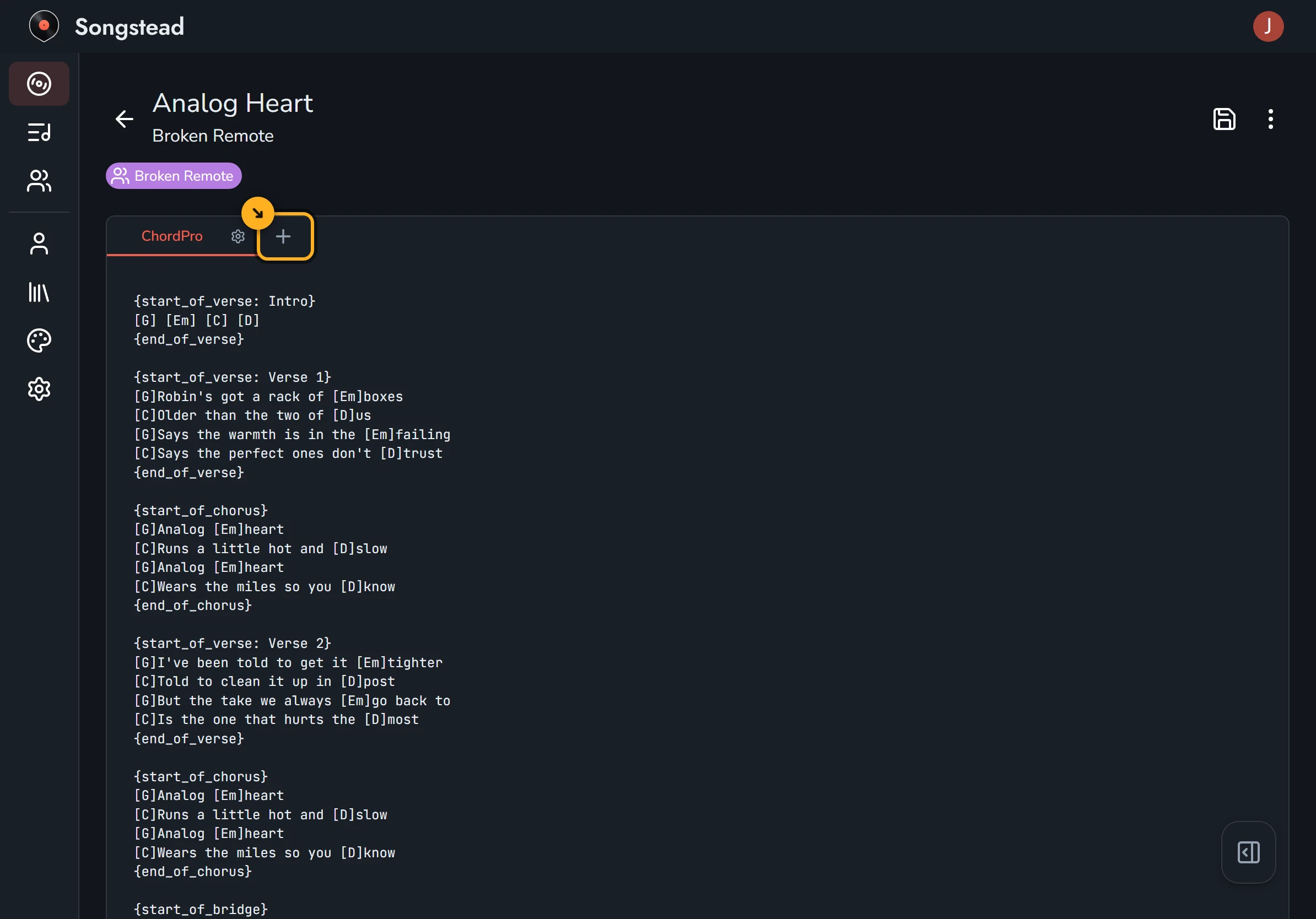
A text chart is a plain text box. Songstead keeps exactly what you type, and does all the transposing and formatting when it shows the chart. Changing the key or the display settings never changes the text you saved.
Select the save button, the disk at the top right, when you're done. Nothing you change while editing is kept until you save.
On a tablet or phone, the song's details, group, note and tags are in the panel that opens from the button at the bottom right of the editor. On a computer they're beside the chart.
Add a chart
Select the + to the right of the chart tabs. Choose Text to type or paste a chart, or File to upload one, then give it a name and select Create.
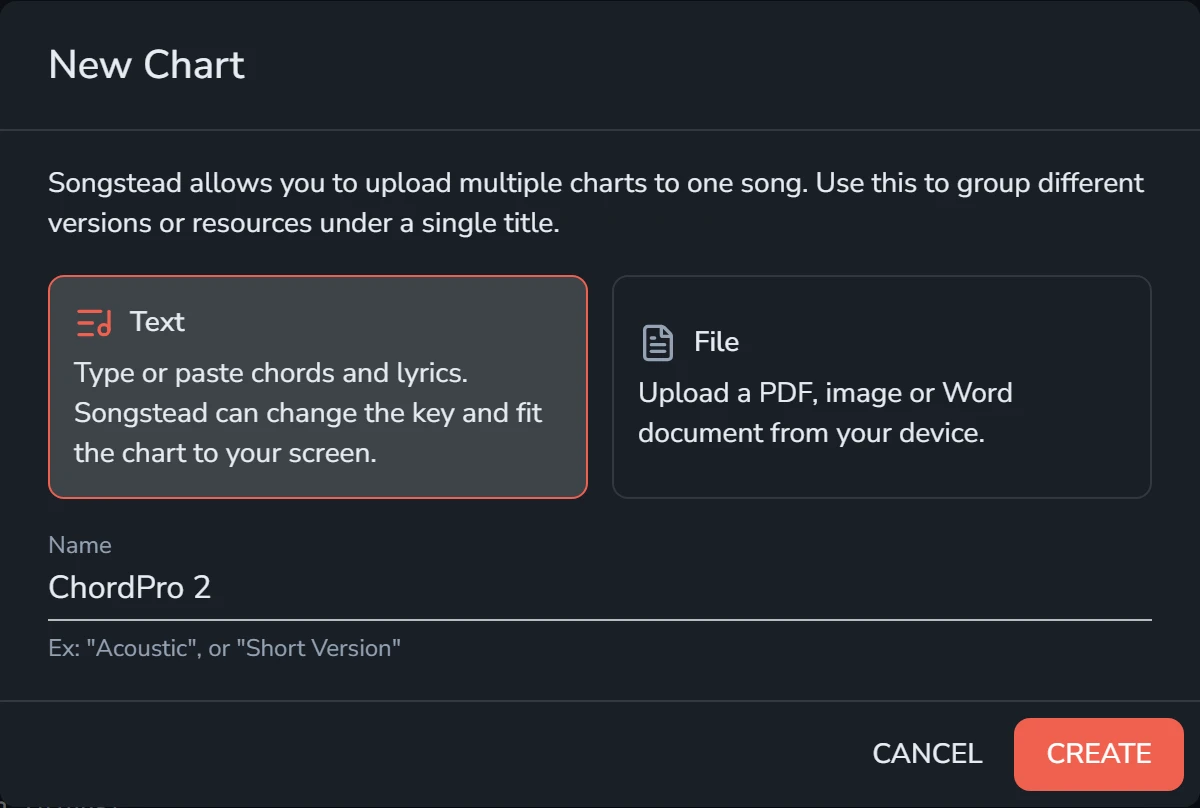
Pick a name that says how this chart is different, like "Acoustic" or "Short Version". For a file chart, Songstead uses the file's name to start with.
An audio recording can't be a chart. Recordings go in the song's Files card instead. See Files and storage.
The default chart
The default chart is the one a song opens on. You can choose it in two places:
- On the song page, open the chart you want and select Set as Default Chart in the Display card.
- In the editor, select the gear on the chart's tab and choose Set as Default.
A set can open a song on a different chart from its default. When you open a song, Songstead shows:
- The chart chosen for that song in the set, if you opened it from a set.
- Otherwise, the song's default chart.
- If there isn't one, the song's first chart.
Rename, duplicate or delete a chart
Each chart's tab in the editor has a small gear. Select it for Rename, Duplicate, Set as Default and Delete.
A duplicate is a good starting point for a second arrangement of the same chart. A deleted chart is removed when you save the song, so you can still change your mind by leaving without saving.
Download a chart
You can download any chart as ChordPro, as chords over lyrics, or as a PDF. See Exporting and printing.