
Docs / Performing
Annotations
Annotations are marks you add on top of a chart: drawings, highlights, arrows, text notes, stamps and short audio recordings. They work on text charts and on PDF and image charts, and they show in Live Mode.
For a note that should be part of the chart itself, for everyone who opens it, a ChordPro comment like {c: Drums only} may suit better. See Directives.
Open the tools
Open a song and select the annotation button, the squiggle at the left end of the toolbar at the bottom of the chart. In Live Mode, it's the squiggle in the top bar. With a stylus, you can start drawing on the chart and the tools open on their own.

The tools appear in a bar along the bottom of the screen, with the layer you're drawing on at the right end.
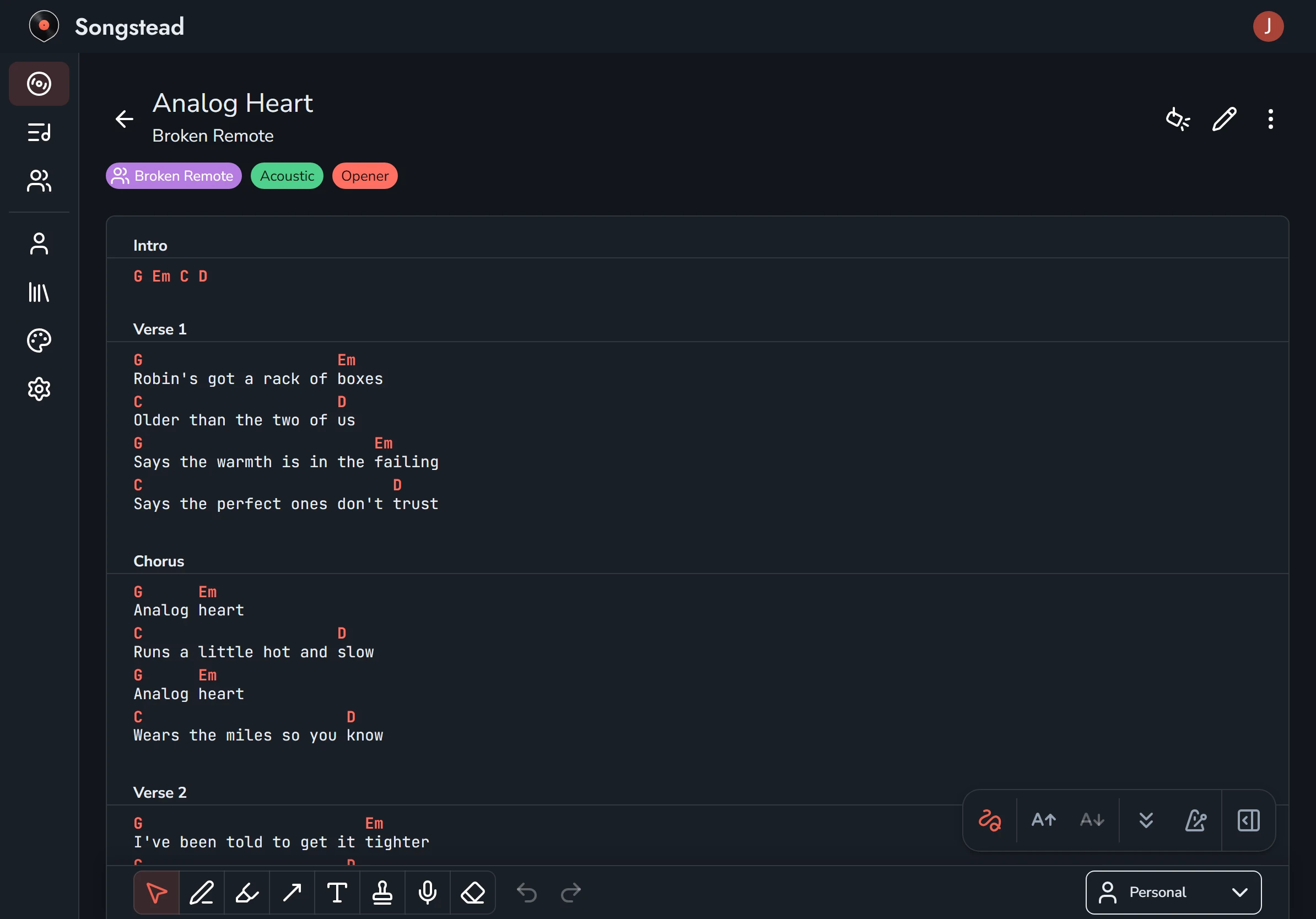
Tools
| Tool | Key | What it does |
|---|---|---|
| Select | V | Selects annotations to move, resize, edit or delete. Drag across several to select them all. |
| Pen | P | Draws freehand. |
| Highlighter | H | Highlights words. |
| Arrow | A | Draws a line or an arrow, like one pointing at the beat where a cue lands. |
| Text | T | Adds a typed note. Text notes can be found with search. |
| Stamp | S | Places a mark you use often, like a repeat count, a dynamic or an emoji. Customize stamps lets you make your own list. |
| Record | R | Records a short audio clip and places it on the chart. Select the chart where the clip should go. |
| Eraser | E | Removes the annotations you touch. |
Each tool remembers its own settings, like its color.
The keys work on a computer or with a keyboard attached. See Foot pedals and shortcuts for undo, redo, copy and paste.
Audio annotations need Backstage, because a recording uses file storage.
Requires Backstage
Annotations follow the words
An annotation on a text chart is attached to the words it was drawn on, not to a spot on the screen. It stays with those words at any font size or screen width, in either Live Mode layout, after transposing, and after you edit the chart.
If you edit a chart so that an annotation's words are gone, the annotation is set aside rather than left on the wrong line. The tools show it under Disconnected Annotations, and you can select one to place it on the chart again.
On a file chart, an annotation is attached to a spot on the page.
Layers
Annotations live on layers. Every chart starts with your Personal layer, which only you see. You can switch between layers by selecting the layer's name in the toolbar, and hide them all with Hide Annotations.
Owners and editors of a group can add layers that every member of the group sees. Select the layer name, then New Layer, choose the group and select Create. A group can have several layers on one chart, such as one for rehearsals and one for the show.
| Layer | Who sees it | Who can change it |
|---|---|---|
| Personal | Only you. | You. |
| Group layer | Every member of the group. | The group's owners and editors. |
Songstead remembers which layer you were looking at on each chart.
Copy annotations to another chart
Select annotations, copy them, open another chart and paste. This is useful for bringing your marks onto a new arrangement of a song.
Annotate a chart in the tutorials walks through the tools with screenshots and a video.