
Docs / Songs
Songs
A song is one piece of music in your library: its title, artist and other details, and the charts you play it from. Every song you can see is listed under Songs in the menu.
Create a song
Select New Song at the top of the Songs page. Creating a song takes two steps.
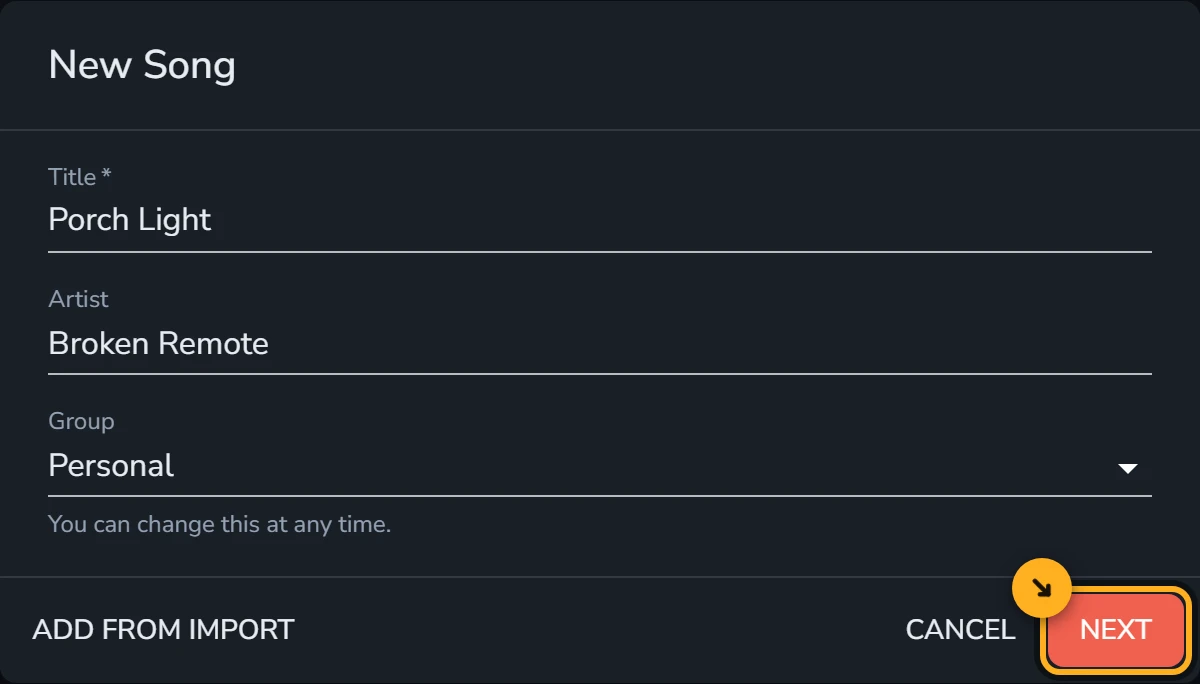
First, give the song a title. You can also add the artist, and Songstead suggests artists already in your library as you type. Group decides who can see the song: Personal keeps it to yourself, and choosing a shared group puts it in front of everyone in that group. Then select Next.
Second, add the chart. You can paste or type the chords and lyrics into the box, or select a PDF or a photo of a chart to play from. When you paste a chart, Songstead reads the chords and fills in the Written Key for you. Select Create to save the song and open it.
Create a song in the tutorials walks through the same steps with a video.
To bring in a lot of songs at once, see Importing. Add From Import in the New Song dialog takes you there.
The song page
Selecting a song opens its page, with the chart filling most of the screen.
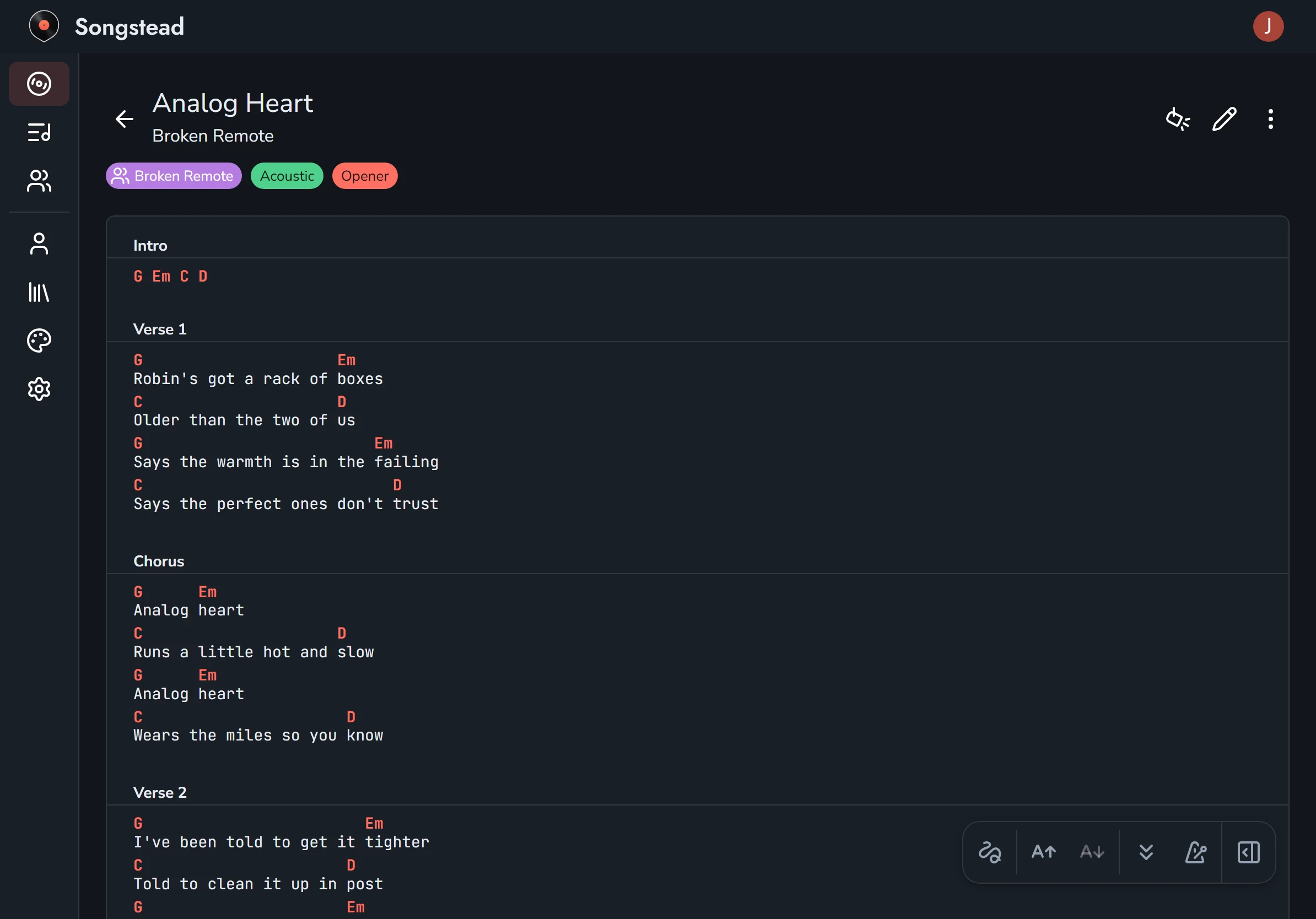
The three buttons at the top right of the page are:
| Button | What it does |
|---|---|
| Live Mode (the spotlight) | Opens the song full screen for performing. See Live Mode. |
| Edit (the pencil) | Opens the song's details, charts, tags and files for editing. |
| Menu (the three dots) | Download, Duplicate and Delete. |
The toolbar at the bottom of the chart keeps the controls you reach for while playing close at hand:
| Button | What it does |
|---|---|
| Annotations (the squiggle) | Opens the drawing and note tools. See Annotations. |
| Larger and smaller text (A with arrows) | Makes the chart's text bigger or smaller. |
| Autoscroll (the double arrow) | Starts and stops autoscroll. |
| Metronome | Starts and stops the metronome. |
| Settings & Tools (the panel) | Opens the song's cards. On a computer screen the cards are always showing beside the chart, so this button isn't there. |
The cards
The cards hold the rest of the song's controls:
| Card | What it does |
|---|---|
| Details | Shows the tempo, time signature and length. |
| Metronome | Plays a click at the song's tempo. See Metronome. |
| Performance | Sets the key you play in, and the capo or transpose. See Keys, capo and transposing. |
| Display | Chooses which parts of the chart are shown, chord names, simplified chords, text size and autoscroll speed. See Chord display. |
| Files | Lists files attached to the song. See Files and storage. |
Song details
Select the pencil on the song page to edit a song. On a tablet or phone the details are in the panel that opens from the button at the bottom right of the editor; on a computer they're beside the chart. These are the details a song can hold:
| Detail | What Songstead does with it |
|---|---|
| Title | Shown everywhere the song is listed, and searched. |
| Artist | Shown under the title, searched, and used when you sort by artist. |
| Time Signature | Shown on the song page and in Live Mode, and used by the metronome. |
| Tempo | Beats per minute. Used by the metronome and the tempo filter on Songs. |
| Duration | How long the song lasts. Autoscroll uses it to finish the chart when the song ends, and a set adds durations up into a total length. |
| Group | Who can see the song. See Groups and roles. |
| Note | Anything you want to remember, like who sings it or how it starts. You see it when you edit the song. |
| Tags | Labels for finding the song again. See Tags. |
The written key belongs to each chart rather than to the song, because two charts of the same song can be in different keys. See Keys, capo and transposing.
Select the save button, the disk at the top right, when you're done. Nothing you change while editing is kept until you save.
Duplicate a song
Duplicate in the song's menu makes a copy with the same details and charts, so you can change the copy without touching the original. If you only want a different arrangement of the same song, a second chart on the original usually works better, because it keeps everything under one title.
Move a song to another group
You can move a song by changing its Group while editing it. Only the person who created the song can move it, and only between groups where they're an owner or editor. Group tags move with the song. See Groups and roles.
Delete a song
Delete in the song's menu removes the song once you confirm. If the song is in any sets, Songstead tells you how many, and deleting the song takes it out of them too. A deleted song can't be brought back.