
Docs / MIDI
Control Songstead with MIDI
An inbound trigger lets your MIDI gear control Songstead. You choose a switch, key or other command on your device, and what Songstead does when it arrives.
MIDI needs Backstage.
Requires Backstage
Add an inbound trigger
- On the MIDI page, open the Triggers tab.
- Select Add Trigger in the Inbound card.
- Under Listen for this MIDI command, select Edit Custom Command, then Add Command. Select Listen and press the switch or key on your device, then select Add, then Save.
- Under Triggered this way, choose the Event: Received, Held or Received twice.
- Under Then take this action, choose the Action.
- Select Add.
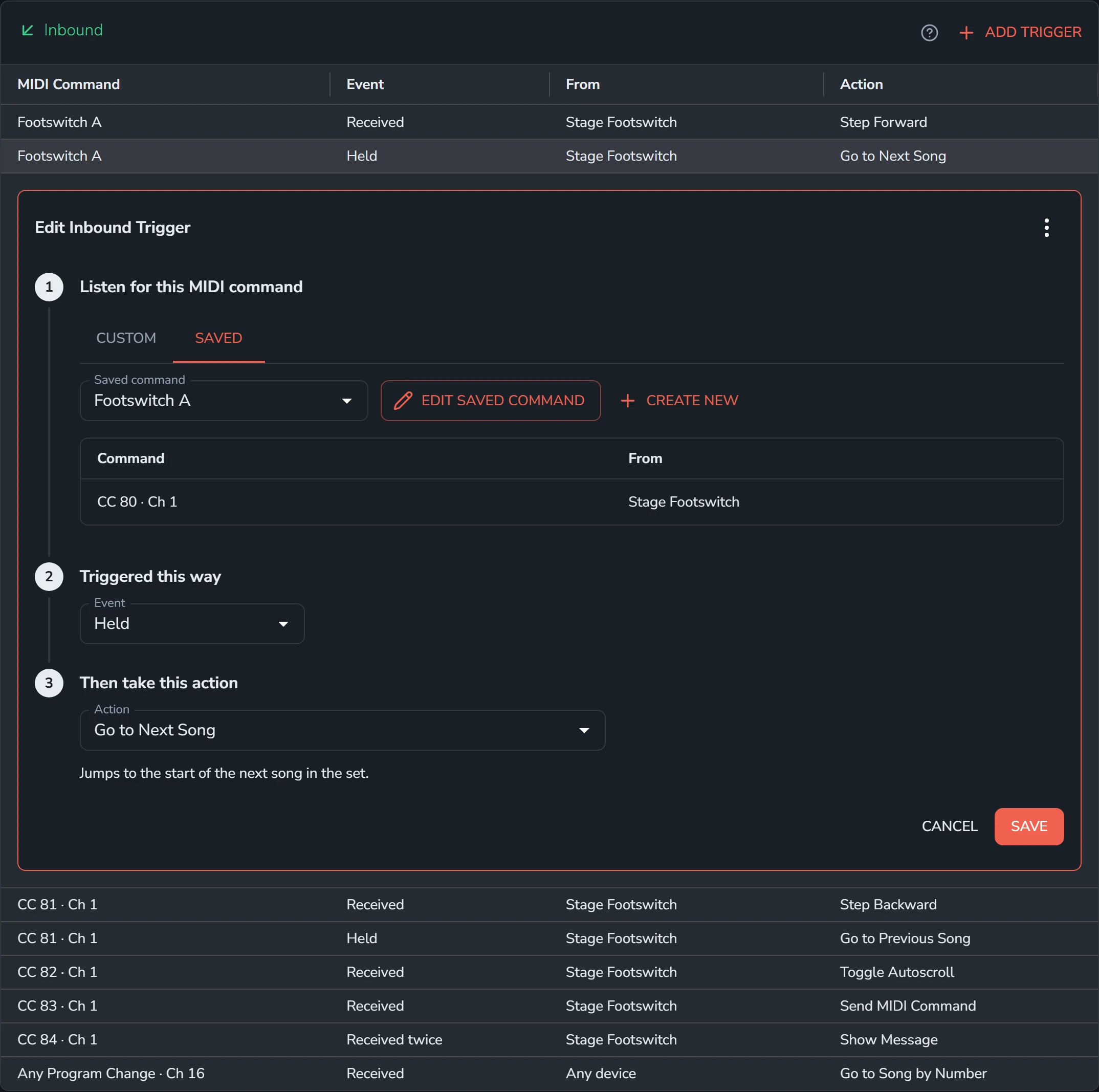
When several triggers listen for the same switch, make the switch a saved command and pick it on the Saved tab in step 3. See MIDI commands.
What a trigger listens for
A trigger listens for one MIDI command. Only its kind, channel, number and device count, not its value.
| Kind | Sets the trigger off when |
|---|---|
| Note On | The note is played. |
| Control Change | The controller goes to 64 or above. |
| Program Change | The program arrives. |
| Song Select | The song number arrives. |
| Start | Start arrives. |
| Continue | Continue arrives. |
| Stop | Stop arrives. |
From is the device the command has to come from, or Any device.
Events
The same switch can do up to three things, one for each event. Give each its own trigger.
| Event | When it happens |
|---|---|
| Received | The command arrives. |
| Held | The switch is held down for half a second. The action happens while it's still down. |
| Received twice | The switch is pressed twice in quick succession. |
Held and Received twice need a command that's released, like a note or a Control Change.
With only Received set up on a switch, the action happens the moment the command arrives. With Held or Received twice set up too, Received waits until you let go, or until it's clear no second press is coming.
Several triggers can share one switch and event, and every one of them runs.
Actions
The Live Mode actions work in Live Mode. The rest work in Live Mode and on a song page alike, and the Utility actions work on any screen.
Live Mode
| Action | What it does |
|---|---|
| Step Forward | Turns to the next page, or scrolls forward a screen, like tapping the right of the chart. |
| Step Backward | Turns back a page, or scrolls back a screen. |
| Go to Next Song | Jumps to the start of the next song in the set. |
| Go to Previous Song | Jumps to the start of the previous song. |
| Go to Song by Number | Jumps to the song whose place in the set is the number received. See Go to Song by Number. |
| Go to Start of Song | Jumps back to the start of this song. |
Autoscroll
| Action | What it does |
|---|---|
| Toggle Autoscroll | Starts autoscroll, or stops it if it's running. |
| Start Autoscroll | Starts autoscroll. |
| Stop Autoscroll | Stops autoscroll. |
| Increase Autoscroll Speed | Scrolls a step faster. |
| Decrease Autoscroll Speed | Scrolls a step slower. |
Performance
| Action | What it does |
|---|---|
| Raise Key | Moves this song's key up a semitone. In a set, it changes the set's key for everyone who plays it. |
| Lower Key | Moves this song's key down a semitone. |
| Raise Transpose | Transposes this song up a semitone for you, or moves the capo up a fret. |
| Lower Transpose | Transposes this song down a semitone for you, or moves the capo down a fret. |
| Reset Transpose | Puts this song's transpose or capo back to 0. |
See Keys, capo and transposing for the difference between the key and your own transpose.
Display
| Action | What it does |
|---|---|
| Increase Font Size | Makes the chart's text a step larger. |
| Decrease Font Size | Makes the chart's text a step smaller. |
| Reset Font Size | Puts the chart's text back to its normal size. |
| Toggle Annotation Tools | Opens the annotation tools, or closes them. |
| Open Annotation Tools | Opens the annotation tools. |
| Close Annotation Tools | Closes the annotation tools. |
Utility
| Action | What it does |
|---|---|
| Send MIDI Command | Sends MIDI commands you choose, to pass a press on to the rest of your rig. |
| Send MIDI Panic | Silences every device: All Notes Off, All Sound Off and Reset All Controllers on all 16 channels. |
| Show Message | Pops up a message you write, as a cue or a reminder. |
Go to Song by Number
Go to Song by Number lets another device pick the song, such as a lighting desk, a backing-track rig or a footswitch with numbered presets.
The trigger listens for a Program Change or Song Select on one channel, and the number that arrives picks the song. Number 0 is the first song in the set, 1 the second, and so on.
Edit or delete a trigger
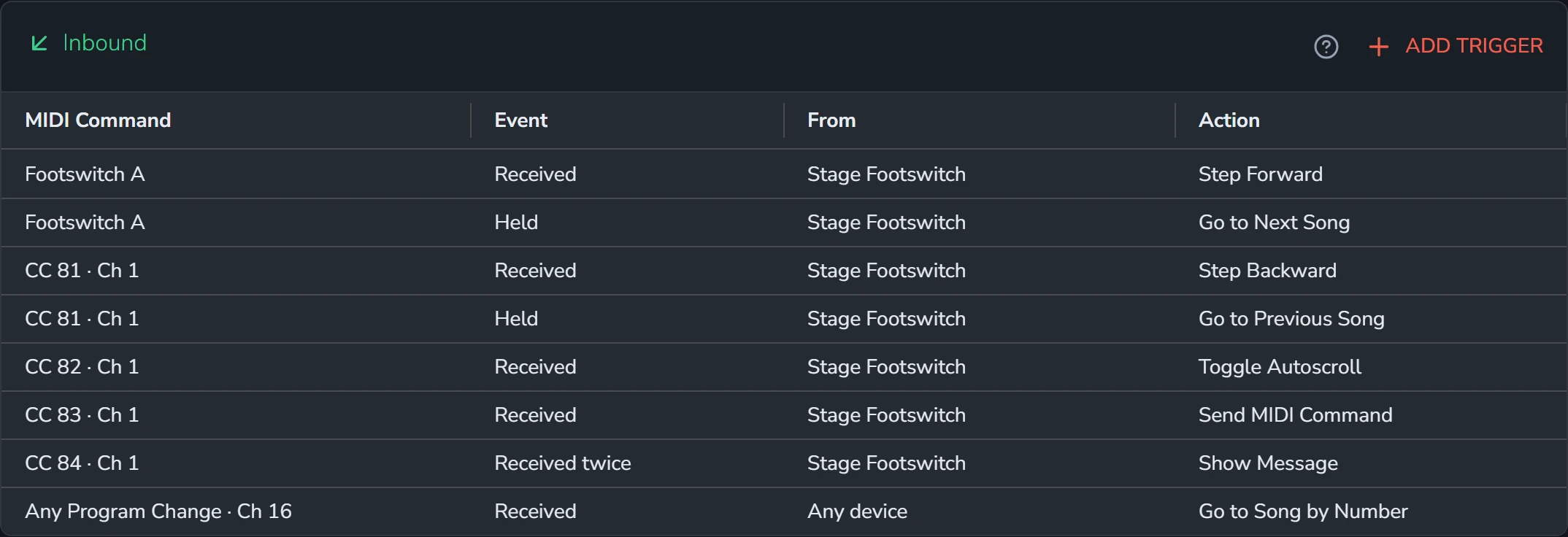
Select a row to open the trigger under it, change what you need, and select Save.
To delete a trigger, open it, select the menu (the three dots) at the top of its card, then Delete and Yes, Delete.
A trigger that can't work as set up shows in the warning color. See MIDI troubleshooting.
MIDI and a page-turner pedal
A Bluetooth page-turner that types arrow keys isn't a MIDI device, and works in Live Mode without any of this. See Foot pedals and shortcuts.