
← All help

Annotate a chart

Mark up your charts with drawings, highlights and notes!

Start annotating

Open a song and select the annotation icon at the bottom of the chart.

If you're using a stylus, start drawing on the chart and the annotation tools open automatically.
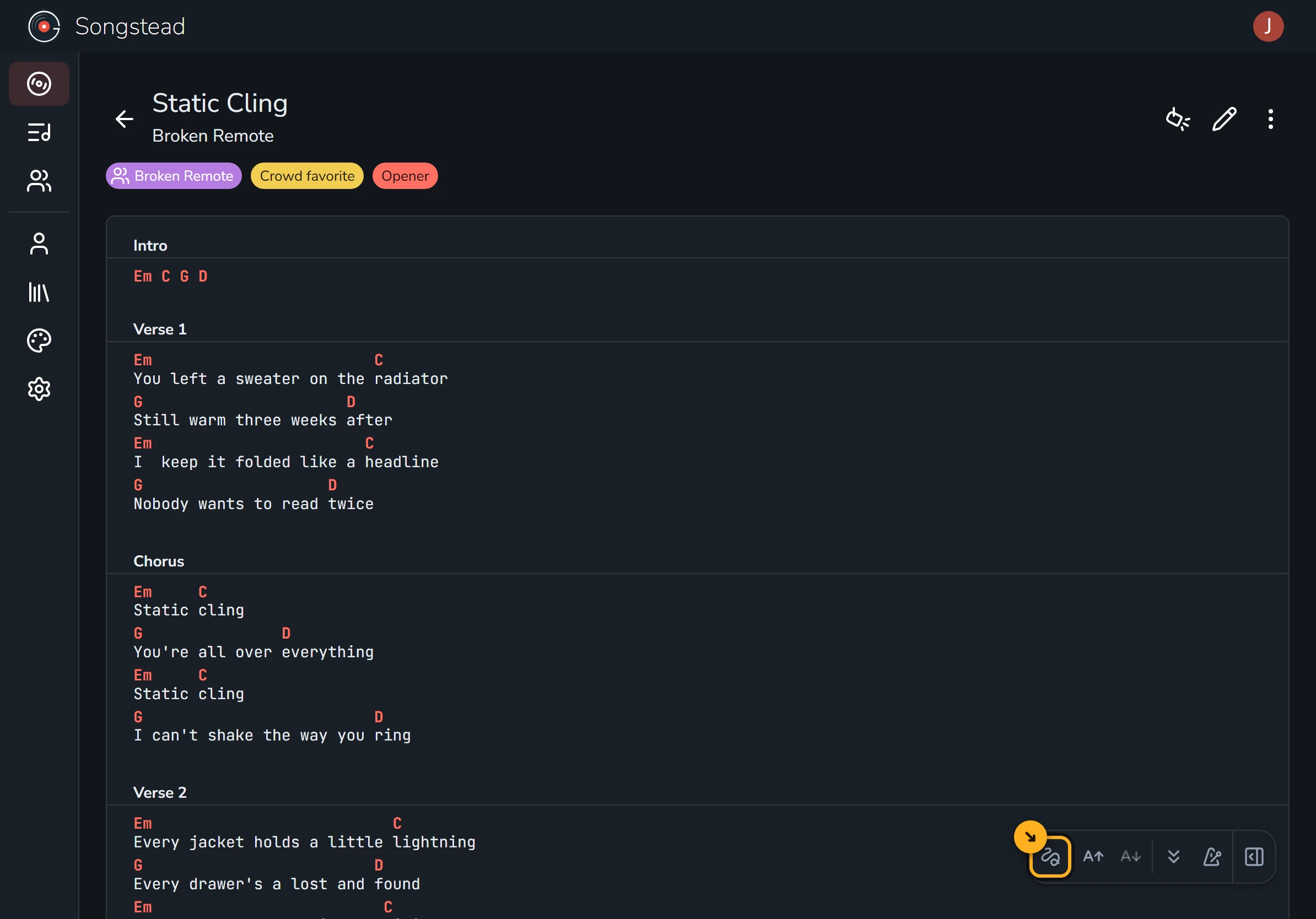
Static Cling's song page, showing the chart with the Intro, Verse 1 and Chorus. The annotation icon, a squiggle at the left of the controls in the bottom right corner, is highlighted.

Draw, highlight and point

Simple tools include a pen, a highlighter, and lines/arrows.

Each tool saves its own settings.
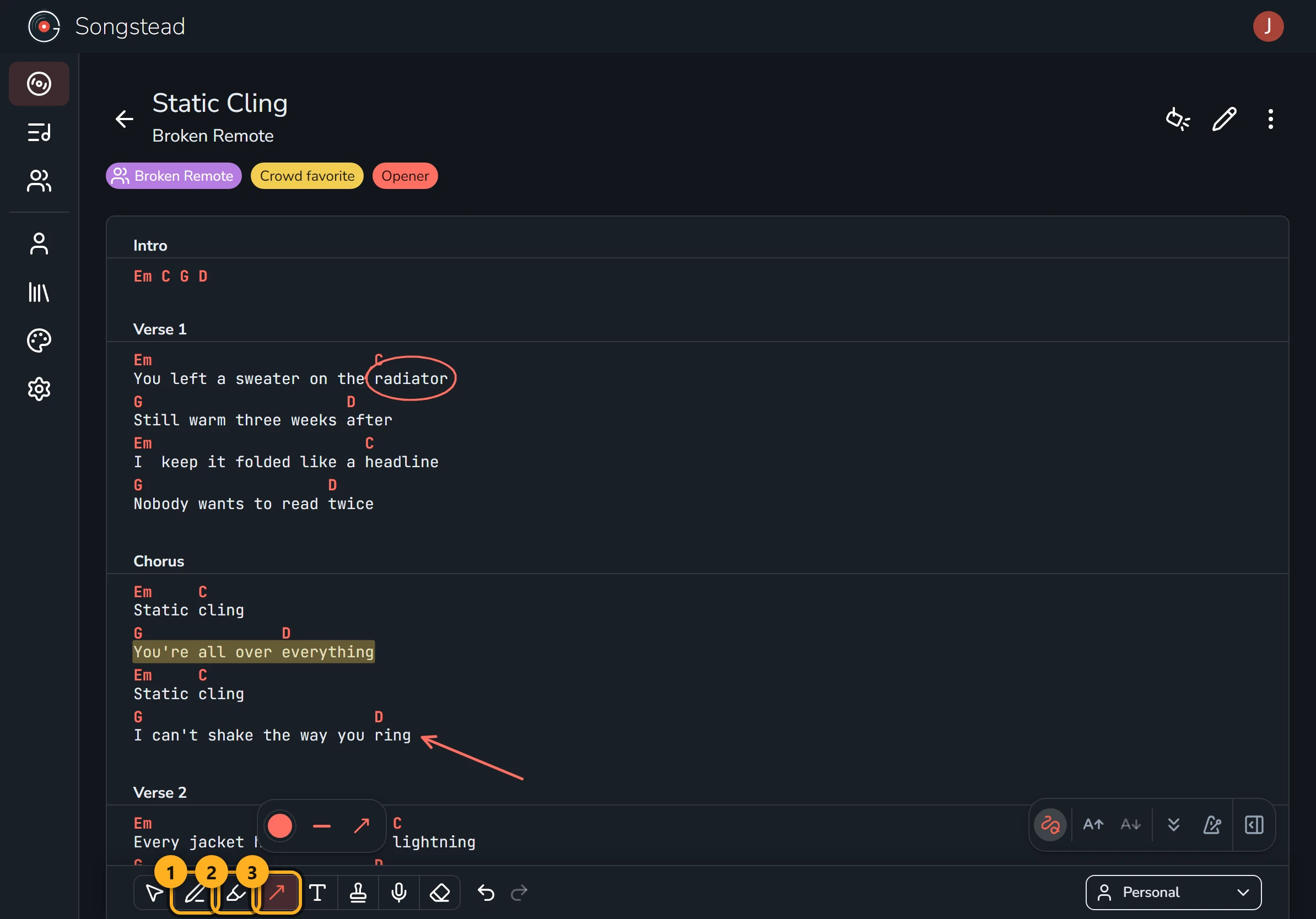
Static Cling with the annotation toolbar open along the bottom. "radiator" in Verse 1 is circled in red pen, "You're all over everything" in the Chorus is highlighted in yellow, and a red arrow points at "ring". The pen, highlighter and arrow buttons on the toolbar are highlighted and numbered 1 to 3, and the arrow's color and style settings float above it.

Add notes and stamps

The text tool allows you to enter detailed text annotations on your chart.

Stamps are for the marks you use frequently, like a repeat count or a cue for the band. Select Customize stamps to define your own list of stamps.
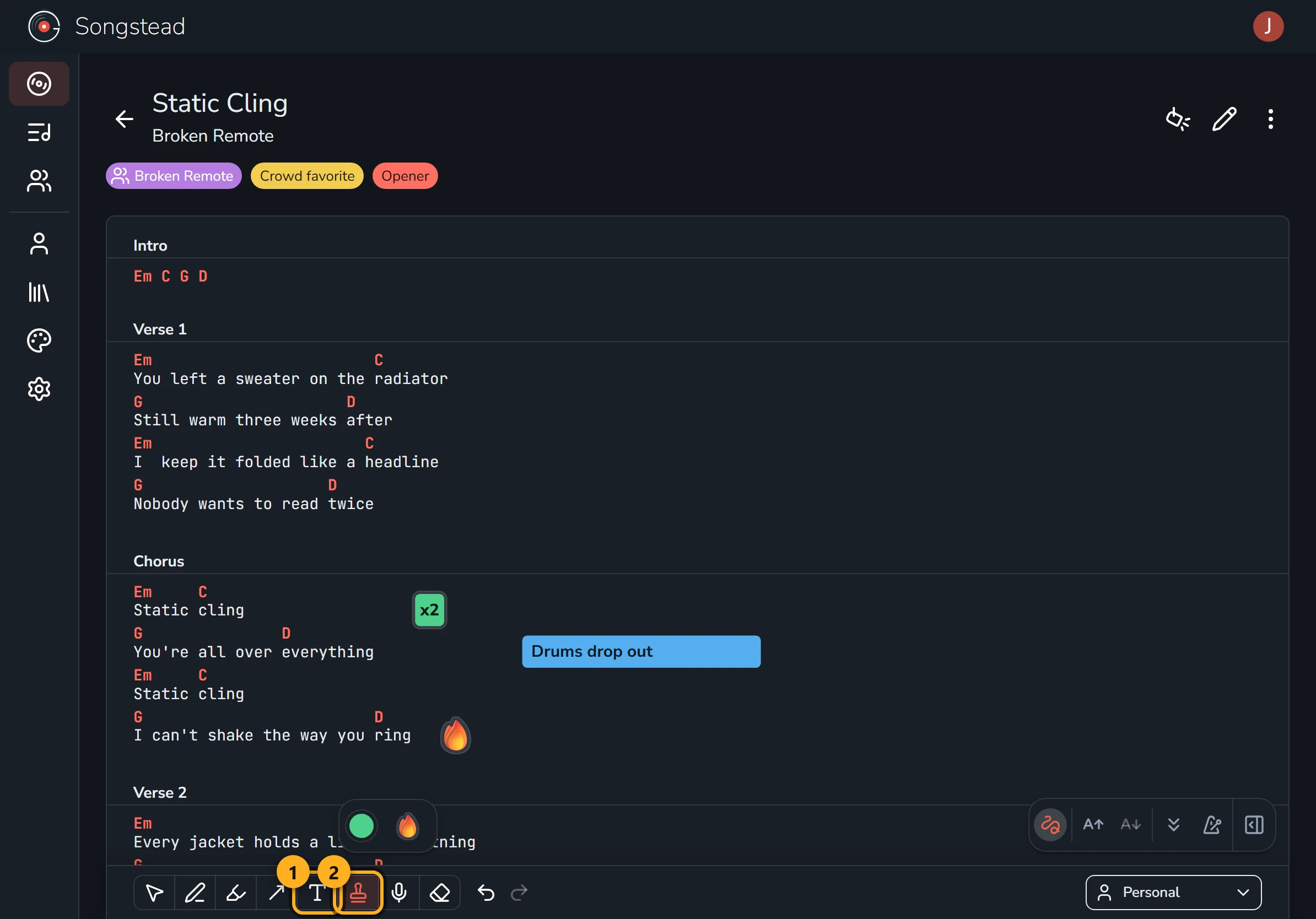
Static Cling with a blue note reading "Drums drop out" beside "You're all over everything", a green "x2" stamp beside the first "Static cling", and a fire emoji stamp beside "I can't shake the way you ring". The text and stamp buttons on the toolbar are highlighted and numbered 1 and 2.

Audio annotations

Audio annotations allow you to record short audio clips directly on the chart.

Requires Backstage
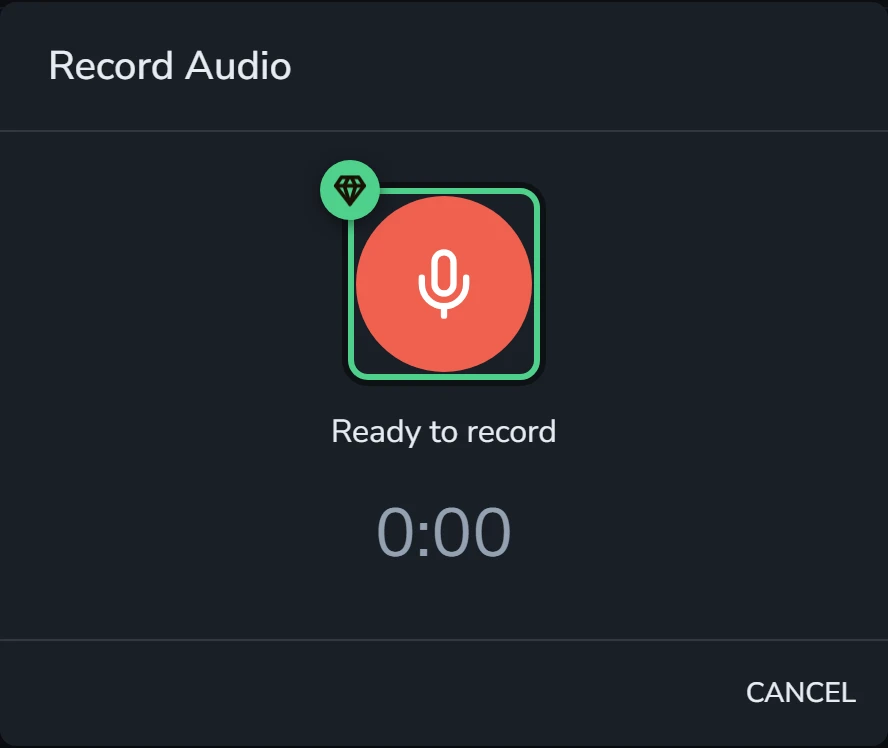
The Record Audio dialog, reading "Ready to record" with a timer at 0:00 and a Cancel button. The large red microphone button that starts recording is highlighted as a Backstage feature.

Change or remove annotations

Move, edit, or resize annotations using the select tool. Drag over multiple annotations to edit multiple at the same time.
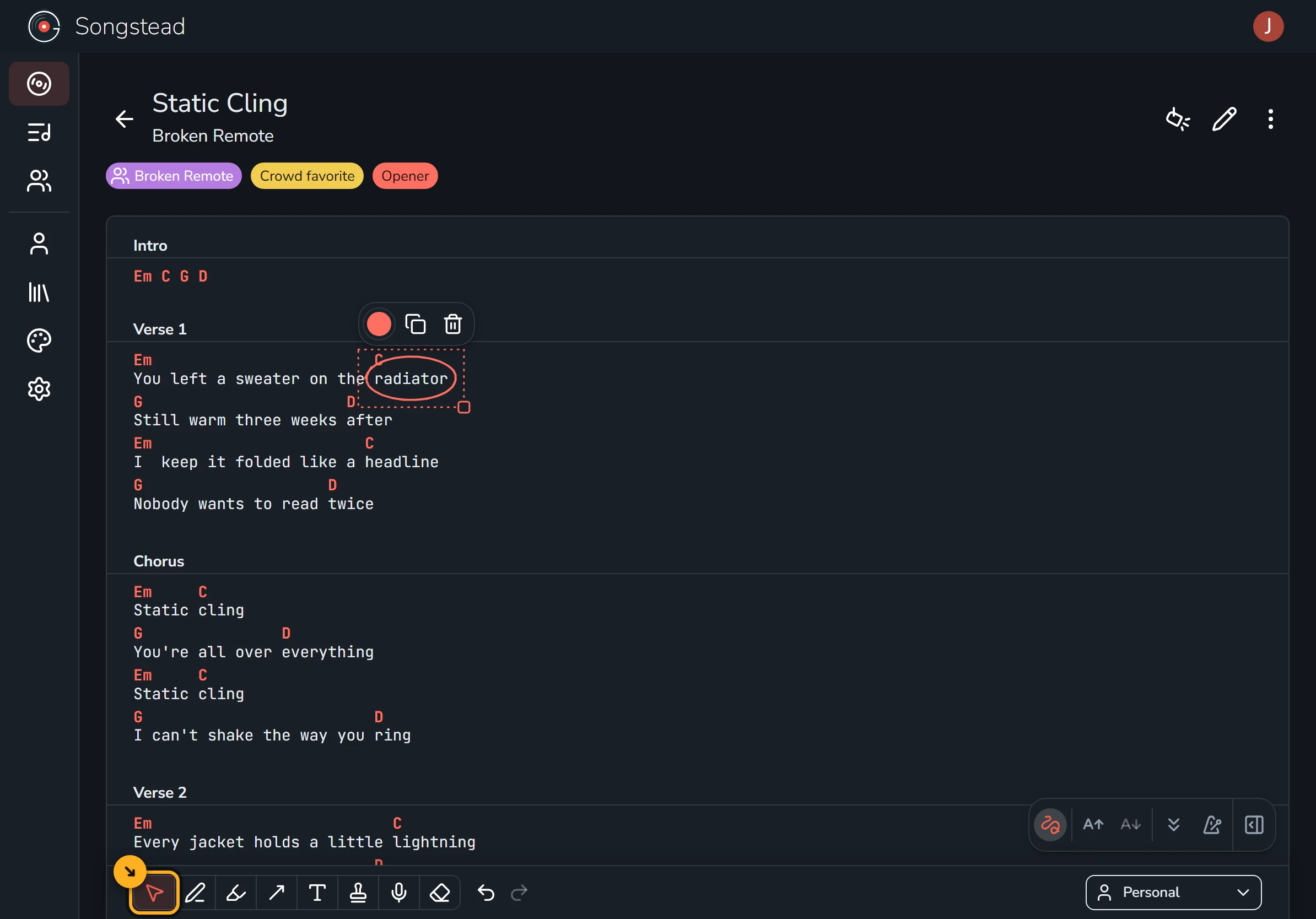
The red circle around "radiator" selected, with a dotted box and a resize handle around it and color, copy and delete buttons above it. The select button at the left end of the toolbar is highlighted.

Share with your group

Group owners and editors can add annotation layers that everyone in the group sees. Make a separate layer for each situation, like one for rehearsals and one for the show.

Select the layer name in the toolbar, then select New Layer. Choose the group, then select Create.

Every member can also keep personal annotations on their own layer, which only they see.
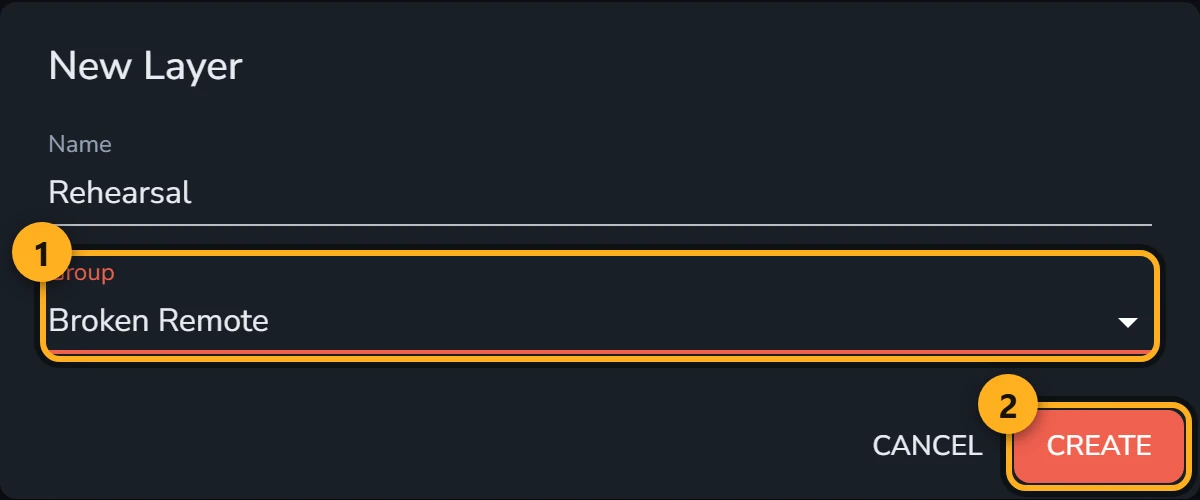
The New Layer dialog, with the name Rehearsal and Broken Remote chosen as the group. The Group field is highlighted and numbered 1, and the Create button is highlighted and numbered 2.

You're done!

It's just that easy. Annotations save as you go and move with the words if you edit the chart. They work on PDF and image charts as well as ChordPro.
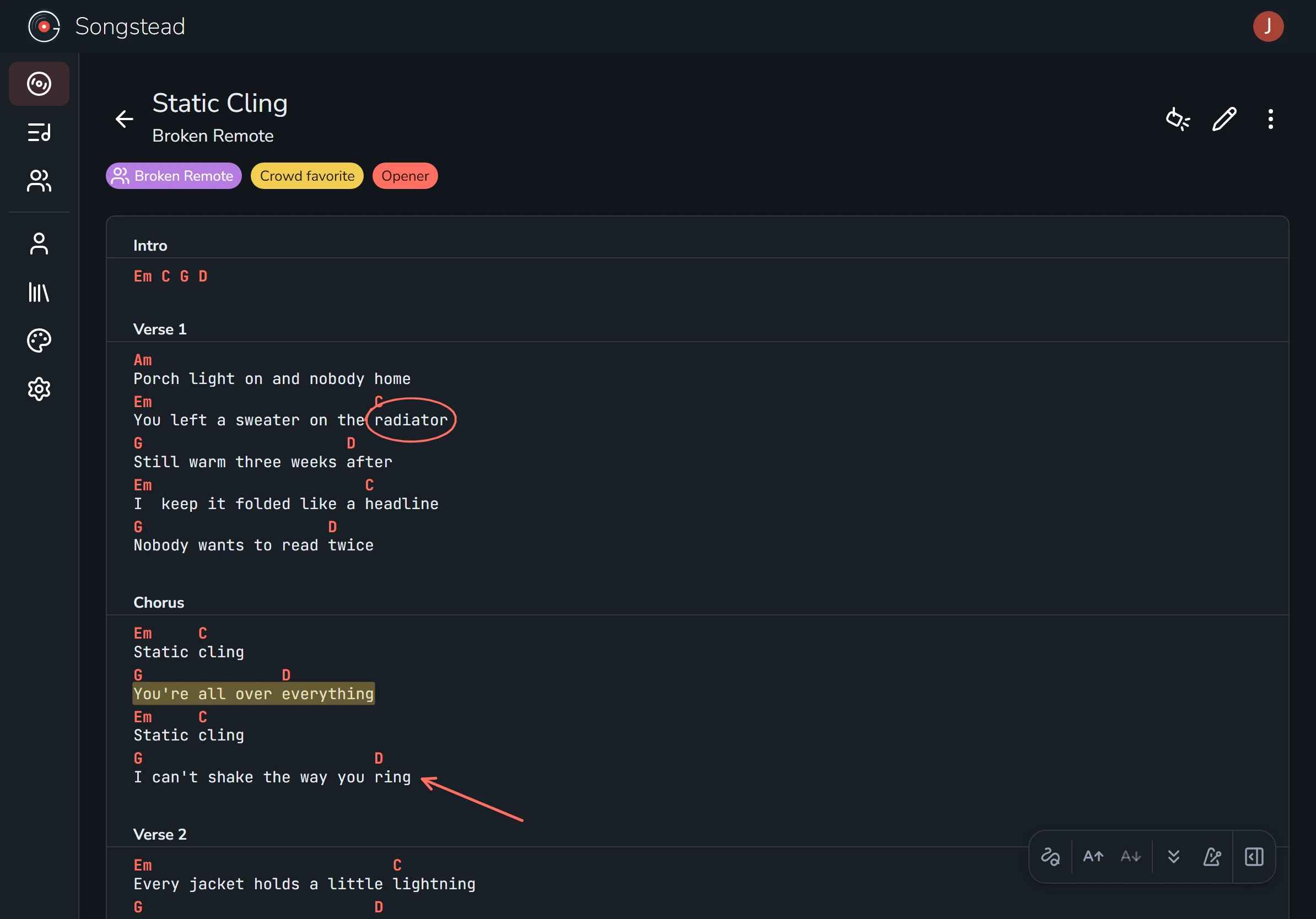
Static Cling after "Porch light on and nobody home" was added as the first line of Verse 1. The circle around "radiator", the highlight on "You're all over everything" and the arrow pointing at "ring" have all moved down a line with their words.